|
Versions in the Document manager |
Scroll |
You can use the Document manager to form a set of model versions. The following operations are available:
•create and delete model versions, change their position in the versions list,
•view the properties of versions and change their values,
•set variable values for different versions,
•save version data to files of various formats and use the saved data to create a set of versions in other models.
|
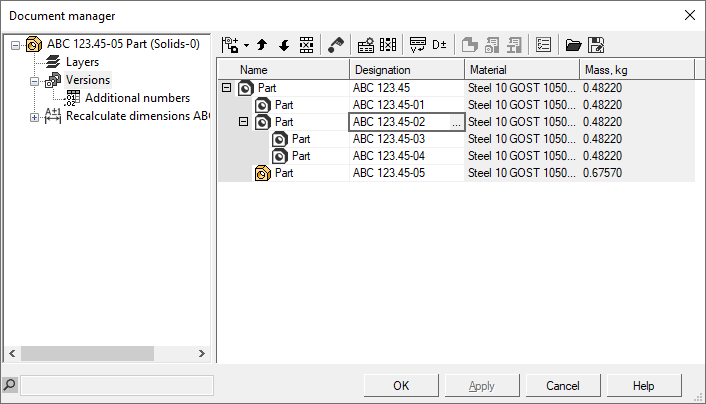
The Document manager dialog appears on the screen after invoking Versions Management  command.

Document Element Tree is displayed on the left side the dialog. If the dialog is opened using the Version cotrol command, the Version element is active in the Tree  . At the same time, the list of model versions created in the document and the toolbar panel allowing to perform various operations with versions are displayed in the right part of the dialog.
The list of versions is displayed in the dialog as a table. Each column in the table corresponds to a specific property of the model.
You can create the required set of properties and their order in the table. To do this, click the Column Settings  in the dialog toolbar. The Column settings dialog will appear on the screen (the dialog options is described in the section Column settings).
|
For the notes on configuring columns containing variables see section Assigning values to custom variables. |

If required, you can hide any column, except for the Name column, without calling the configuration dialog. To do this, activate the cell of the required column and click Delete column  button.
In the Manager, you can add and remove model versions, change their position in the document versions set, configure properties for different versions, save version information, and use this information to create a set of versions in other documents.
The Document manager dialog allows you to work not only with model versions, but also with additional version numbers.
To perform various operations with additional numbers, activate the element Additional numbers  in the dialog tree. In the right part of the dialog, a list of additional numbers created for the model with versions and a toolbar panel for performing various actions with additional numbers will be displayed.
The list of additional numbers is displayed in a dialog as a table. The procedure of setting the table columns is similar to the versions setting (see above).
In the Manager, you can add and remove additional numbers, change their position in the list, change additional numbers and comments assigned to them, save information about additional numbers and use this information to create additional numbers in other documents. Operations with additional numbers are described in section Additional version numbers.
After completing all the required operations close the dialog by clicking OK. All changes made will be saved. The Cancel button is used to close the dialog without saving.
If you want to save the changes without closing the dialog, click Apply.
|
The operations of adding, moving and deleting versions are saved automatically and cannot be undone in the Manager. |

See also
