|
Control of load modes |
Scroll |
To manage assembly load types, use the Load Modes... command  .
.

After running this command, the controls shown in the Figure appear in the Parameter Toolbar.
|
Parameter Toolbar to work with load types |
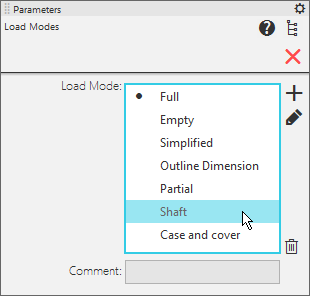
In the Load Mode field, a list of all load types available in the assembly is displayed (system and user). The applied load mode is marked with a dot (to the left of the type name, as shown in the Figure). If the load mode of one or more components has changed in the current session of working with the assembly, an asterisk (*) is displayed next to the dot.
Below the list of load types, a field is displayed to view a comment for the selected type. The comment is set: for a system type, when editing it, for a custom type, when creating or editing it.
In the Load Modes process, the following actions are available:
•Apply the required load type to the assembly
To do this, click to the left of the type name in the Load Mode list.
•Create Custom Load Mode
To do this, specify the required load types for the components. If necessary, lock/unlock editing certain components (to do this, use the corresponding icons in the Design Tree). Then, click the Create  button to the right of the field and perform the necessary actions in the dialog box Creating of load mode.
For more details about creating load modes...
|
Selection of component load types and management of the lock on their editing are available outside the Load Types process. You can perform these settings when working with the assembly and save them to a previously created custom load mode. To do this, apply the required load mode to the assembly, configure the components as required, and save the assembly. Load modes of the assembly components and information about editability will be written to the selected load mode of the assembly. |

•Edit load mode
To edit the system type, select it in the Load Mode field, click the Edit  button to the right of this field, and perform the necessary actions in the dialog box Edit load mode.
For a user-defined type, change the loading of components and/or lock/unlock editing certain components (to do this, use the corresponding icons in the Design Tree), then select the desired type and click the Edit button.
More about editing load types...
•Delete Custom Load Mode
To do this, select a load mode to be deleted in the Load Mode field and click the Delete  button to the right of this field. For more details on deleting of loading type...
After completing all the necessary actions with the assembly load types, click the Finish  button on the Parameters Panel.
