|
Create and Delete Custom Load Modes |
Scroll |
You can create a custom load mode in two ways: in the Load Modes process (see below) and automatically when saving the assembly.
Custom load types can be edited and deleted.
To create a custom load type of the current assembly, do the following.
1.Specify required load types for assembly components (see section Select Component Load Type).
2.If required, lock certain components from being edited (see section Lock the Components from Being Edited).
3.To do this, run the Load Modes...command.
|
After you invoke the command, you can change component load modes, or lock or unlock editing using icons in the Design Tree. |

4.Click the Create  button to the right of the Load Type field on the Parameters Panel. On the screen, there appears the Creating of load modedialog.
5.Enter the name of the load type in the Name field of dialog. The name should be different from other names of load types in the current assembly. The default name of a custom load type is Custom No. (No.=1, 2, 3, etc.).
|
Names of load types created in files of components-subassemblies can be the same. Assigning the same names is used to simultaneously load component-subassemblies with their own load type defined by settings of the custom load type with this name. |
6.If you need to protect a load type with a password, enter a password in the Password field and confirm it in the dialog box that opens.
For more details on password protection of load modes, see section Passwords of Load Modes.
7.To apply a load type you create to the model, enable the Apply to the Model option. If this option is disabled, the applied load type remains the same.
8.Click OK to close the dialog.
The system will go back to the load type control. The name of a custom load type that you created will appear in the Load Mode list on the Parameter Panel.
9.If you want to apply a different load type, select a row with its name in the Load Mode list and click its left part.
10.To exit the command, press the Finish  button on the Parameter panel.
In the Assembly build tree, a custom load type is marked with a relevant icon  .
.
You can also create a custom load type when you close the document, see the section below.
Create a Custom Load Mode When Saving the Document
When closing the assembly file, in which the load mode has been changed (indicated by a (*) next to the load mode name), the system issues a prompt for saving the document. After you click Yes, a prompt to save an assembly load type will appear on the screen.
When replying to a prompt, the following options are available:
•a new custom load type will be created in the assembly,
•change of a component load type will be saved in the current custom load type,
•change of a load type will not be saved.
If the changes occurred in the assembly with a system load mode, the following prompt appears on the screen.
|
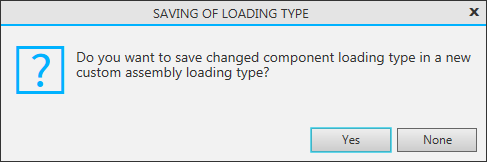
A prompt to save a load type in the assembly with a system load type.
Clicking Yes launches the dialog, with which you can create a new custom load mode.
By clicking No , change of the load type is not saved (other changes in the assembly are saved).
If changes occurred in the assembly with custom load type, the system issues a prompt of this type.
|
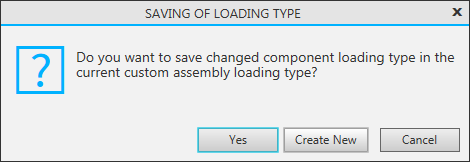
A prompt to save a load type in the assembly with a custom load type.
Clicking Yes allows you to save changes in the current custom load type.
By clicking Create new, on the screen appears the dialog, using which a new load mode can be created.
By clicking Cancel, change of the load type is not saved (other changes in the assembly are saved).
To delete a custom load type of the current assembly, do the following.
1.To do this, run the Load Modes...command.
2.Select a load type to be deleted in the Load Mode field on the Parameter Panel.
3.Click the Delete  button, located to the right of the Load mode field.
The selected load type will be removed from the list.
After you delete the applied load type, the previous load type on the list is applied.
4.To exit the command, press the Finish button on the Parameter panel.
|
A load type may be password protected and several protected load types may form hierarchical chains (see section Passwords of Load Modes). Note the following when deleting protected load types: •when deleting a load type that is not Applied or subordinate to it, you will have to enter a password (a relevant dialog box will appear after clicking the Delete button), •you cannot delete an Applied load type which is contained in the chain but which is not the first one in it (the Delete button is not available). |
