|
Create/Edit Load Mode dialog |
Scroll |
It allows to create/edit assembly Load Modes assemblies.

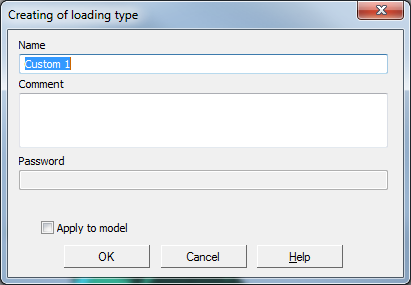
•Dialog Creating of loading type appears on the screen after clicking Create button located to the right of the field Load Mode on the Parameter Panel or when responding to the request to save the type of load.
•DialogEdit loading type appears on the screen after clicking Edit button to the right of the field Load Mode on the Parameter Panel.
Description of Controls
The element |
Description |
|
Name |
This field displays the type of assembly load. The field is available when creating and editing a custom load mode. Enter Name. The default name of a custom load type is Custom No. (No.=1, 2, 3, etc.). When editing the system load mode, the field is not available. |
|
Comments |
This field displays a comment. |
|
Password |
The field to enter the password type of download. When creating a field is available if the password is set to system boot types. By default, when creating the field is empty – there is no password; when editing a protected type of save, the field contains the characters by default. •To protect the load mode with a password, enter the characters in the field. •To make the load mode unprotected, remove all characters from the field. •To edit a password, remove all characters from the field and enter a new password. If you do not need to enter or edit a password, the field Password should be left unchanged. |
|
Update the model based on the current state. |
The option is in the dialog when editing the type of download. When this option is enabled, the type of loading of the assembly is formed according to the current state of the assembly, with the option disabled, the state of the assembly with the type of loading applied. The state of the assembly is determined by the loading its components, and also with the disable editing. |
|
Apply to the model |
Creation/editing is on, the type of load will be applied to the model. If the option is disabled, the type of load applied remains the same as before the creation/editing. |
After entering the parameters, click OK. If a new password has been set, enter it again in the dialog that appears.
To exit the Create/Edit loading type dialog without changing the settings, click Cancel.
See Also
