|
Disabling editing of model objects |
Scroll |
Model objects can be either available or not available for editing.
Editing of the following objects can be disabled:
•Components,
•Solids (but not operations that were used for building the solids),
•Surfaces (but not operations that were used for building the surfaces),
•Curves and points,
•dimensions and designations,
•Sketches,
•Auxiliary objects, except for the origin of coordinates.
Objects that are restricted from editing cannot be deleted, moved to another layer, included in calculations, or excluded from calculations. If a restriction is placed on a solid, it becomes impossible to perform solid editing operations, such as chamfering, cutting a hole, etc. Similarly, it becomes impossible to modify a surface (trim, extend, etc.) if its editing is prohibited.
Restricting editing of assembly components can be used to differentiate access to its parts. This restriction remains in the custom loading types. See the section Prohibition on Editing the Component.
|
Regardless of whether objects are available for editing or not, they can change as a result of modifications to their source objects and can be deleted using the Build Completion Indicator (see the section Editing the model using the Build Completion Indicator). |

Property Editing
Displaying the property values in the model Design Tree
Editability of objects is defined by the value of the Editing property of the relevant object. You can view values of this property for different objects in the model Design Tree. To do this, enable the display of the Editing column using the corresponding menu command of the  button in the Tree Panel header.
Icons in the Editing column correspond to the property values.
|
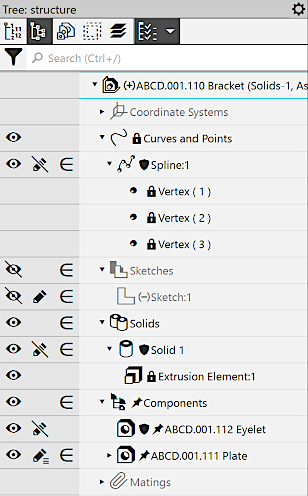
Display of non-editable objects in the model Tree
The default value for all objects is By layer  . It means that the editability of objects is defined by the values of the Editing property assigned to their containing layers (for information about layers, see the section Model layers), i.e. editing all objects on the same layer can be simultaneously prohibited or allowed by changing the value of the Editing property for that layer.
You can enable or disable editing of a particular object. In this case, the Editing property will have the Allowed  or Forbidden
  value.
If the value of the Editing property of an object is changed from the default (i.e., it has the Forbidden or Allowed value), then editing the object is forbidden (or allowed) regardless of the state of the layer it is on.
Objects disabled for editing will be marked in the Model Design Tree with an icon  . If it comprises other objects, they will be marked with the icon
  .
.
Assembly components can be marked with the icon  . This means that for the assembly was applied Type of load, which is protected with the password and contains information about the restriction on editing components.
|
If a password-protected load type is applied to the assembly, and then components are added to it, these components will automatically become non-editable in other custom load types and will be marked with |
Enabling and disabling of editing
You can change the value of the Editing property for the selected object using one of the following methods:
•using the Editing column in the model Design Tree — click the icon in the column and select the required line from the dropdown list:
Editing is allowed,
Editing is forbidden,
Edit by Layer.
•using commands from the context menu — open the Edit submenu and call the relevant command:
Enable,
Prohibit,
Assign by layer,
•Using the Edit list in the State section of the Parameter Panel (see the Figure).
The first described method allows to change the state of a single object and the other methods are used to change the state of a single or multiple objects.
