|
Changing the operations sequence |
Scroll |
One of the editing techniques is mouse-dragging the operations right in the Design Tree. Using this method you can quickly change the build sequence.
|
To facilitate the objects drag-and-drop operations, activate the display of the model creating sequence in the Tree (see section Displaying Model Design History in the Tree). |

To move an operation in the Design Tree move the cursor to the desired icon, click the left mouse button and holding the button move the cursor to the intended position of the operation in the Design Tree.
To move multiple operations, select them by left-clicking while holding down the <Ctrl> key. To move several consecutive operations, click the first and then the last operation to be moved while while holding down the <Shift> key. To move any of the selected operations in the Design Tree, move the cursor to it, click the left mouse button, and, while holding it down, move the cursor to the intended position of the operations in the Design Tree.
As you move, the cursor takes the form of a four-headed arrow  . When dragging several operations, their quantity is displayed next to the cursor.
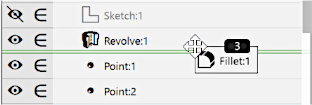
Moving multiple operations in the Design Tree
If an object which cannot be preceded by an operation (or at least one operation from a group of operations) is situated under the cursor during dragging, the background of this object's name becomes pink.
When the required position of the operation or group of operations is reached, release the mouse button.
The operation icon will be located in the Design Tree at the specified position and will be marked with the  icon. This means that the changes in the build sequence have not yet been transferred to the model – the image in the graphic range remains the same.
To rebuild a model, click the Rearrange button  on the Quick Access Panel. More about rebuilding the model...
When moving operations, the operations hierarchy is taken into account. The operation cannot be moved above the source object or below the derived object in the Design Tree.
