|
Methods for working with objects in the Graphic Document Tree |
Scroll |
•The general working methods are described in section Working in the Document Tree.
•Search for objects in the Document Tree is described in section Search in the Document Tree.
•To display a specific sheet or drawing view on the screen, double-click its icon (to the left of the sheet/view name).
•You can control objects using icons or context menus.
•Icons are displayed in the left-hand part of the Tree (see Figure). They let you to configure objects separately. When you move the cursor to an icon, a shortcut with the name of the current property value appears. Clicking the icon changes the property value to the opposite (if there are two values), or opens up a list of values (see Figure). The list of properties and, respectively, icons, depends on the type of object, for example:

 — visible/hidden view or layer,

 — fragment inserted by reference/integration,

 — enable/disable printing a layer,

 — horizontal/vertical orientations of the sheet.
For a list of icons, see in the table Icons in the Document Tree Add-Ons Interface elements.
•Right click the selected object of the Tree to open context menus. Context menus allow you to configure objects both separately and in groups (to do this, before running a command, select all the objects to which it is to be applied). In most cases, a context menu contains not only property changing commands but also other commands used to control objects; see the figure.
|
|
a) |
b) |
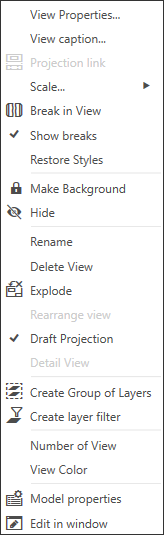
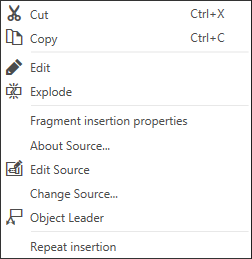
Context menu of the Drawing tree elements
a) view, b) fragment insertion
