|
Working with the property list in the Parameter Toolbar |
Scroll |
After running the Model Properties command (or Document Properties, or View Insertion Properties, etc.), property management elements, including a list of properties, appear in the Parameter Panel.
|
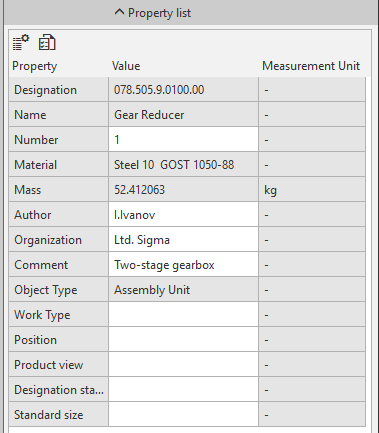
The list is located in the main section of the Parameter Panel (in a graphic document) or in the Property List section (in a model). It contains properties attached to the current document that are enabled to be displayed.
You can manage properties display in the list and edit the set of the current document properties.
To enable/disable display of a property in the list, click the Property List Settings  and enable/disable the option in the line of the desired property in the appeared list. Property List Settings.
You can do the same in the Property Management, invoked by the same-named button  on the Parameter Panel. This dialog box allows not only to manage properties display in the list but also to Edit the set of properties of the current document.
|
To view property values of all the objects in a document, use the Property Editor or Product BOM panel. |

Setting property values
The list of the document properties is displayed as a table containing names, values and measurement units of properties. The property list includes both system and additional properties of a document.
|
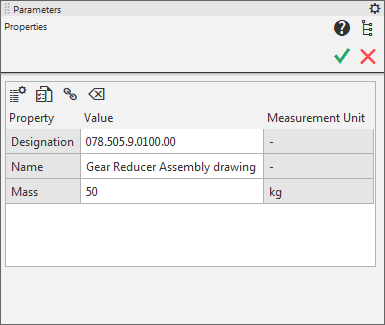
View insertion properties list
Property cells available for editing in the Property List bar have a white background and cells which cannot be edited have a gray background..
When you activate a white cell, controls allowing you to specify a property value appear on the screen. Ways of setting values of various properties are described in Sections System properties and Additional Properties.
A property value can be obtained by reference. To create a link, select the property in the list and click Insert link  button. For more details on working with property references, see Section Link in a property value.
The value set on the Property list panel can be removed using the Delete value button  . If the property value can be obtained from a source (see next Section), then after deleting, the property value field is automatically filled in with the value from the source.
Property values of certain objects can be obtained from a source, for example, a component property values can be transferred from its file. The properties table of such objects contains the Source column.
|
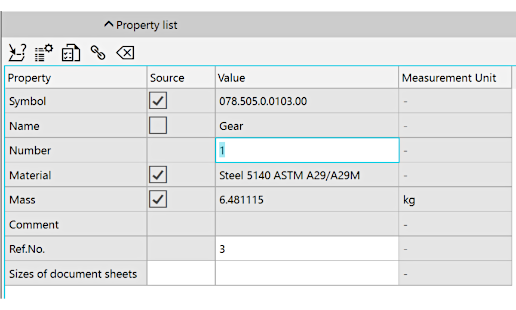
Model component properties list

List of properties in an associative drawing
In the Source column cells corresponding to certain properties an option is displayed. Presence of an option shows possibility of obtaining a property value from the source. The following options are available.
 If the option is enabled. The property value is obtained from the source and can be replaced with the value set in the current document. After replacing the value, the option is automatically disabled.
 The option is disabled. The property value is set in the current document. To obtain the property value from the source, enable the option.
 The option is enabled and unavailable. The property value is obtained from the source. The property value cannot be changed in the Property List bar.
 The option is disabled and unavailable. The property value is set in the current document (for example, in a model the component mass value is set in the CMP Calculation section of the Parameter Panel). Changing the value of the property on the Property List toolbar is impossible.
When working with a model, you can view all properties of the source by clicking the Source Properties  . An informational window containing the current date, full name of the file and the list of its properties appears on the screen after this. This button is not present when you work with a drawing. You can view information about the object source document using the Source Information... command in this object’s context menu in the drawing Design Tree.
|
When you set property values for objects which have a source, note that by default they are displayed with properties set in their source files. If necessary, you can change these values in the current document. For some properties of the component, it is possible Transferring their new values to the source file. In other cases, the changed property values of objects are stored in the current document and are not transferred to files of the objects themselves. |

