|
Special cases of setting associative linear dimension |
Scroll |
Unlike other objects, the linear dimension is associated with the object not by the constraint Associativity, but by the constraints Coincidence of points (or Point on the midpoint of the curve). These constraints should be applied to the start points of dimension extension lines and to the characteristic points of the geometric object. That is, for the dimension to control, for example, the length of a segment, the dimension extension lines must be connected to the segment ends by the Coincident Points constraint.
In the parametric mode, constraints arise automatically when triggered. Snaps. If the points to which snapping is possible coincide, then the snap with the higher priority is activated. Priority is determined by the order of snaps in the menu Snaps button and can be changed in the dialog box. Setting global snaps (see Figures).
|
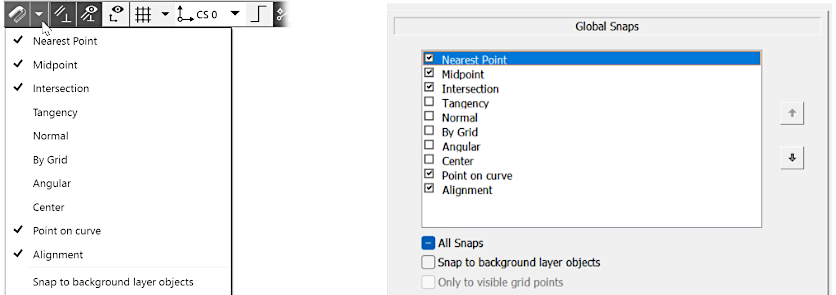
Snaps Menu and Global Snaps dialog
For example, when the endpoint of one object coincides with the midpoint of another, a snap to the endpoint will occur at this point, not to the midpoint (see figure). This is explained by the fact that, according to the default setting, the Nearest snap point has priority over the Midpoint snap.
|
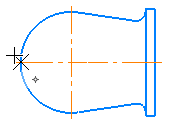
By default configuration of snaps
The snap to the nearest point to the end of the centerline is triggered.
Therefore, if the end point of the center mark (or center grid) coincides with the middle of the curve, the following occurs when setting the dimension. The dimension will not be linked to the curve due to the Midpoint snap having secondary priority, and this dimension will also not be linked with the center mark/center grid, as it is not possible to establish associative dimensions for these objects. As a result, a non-associative dimension is created, although it is usually required that it be associated with the curve, i.e., control its size or position, as shown in the figures below.
|
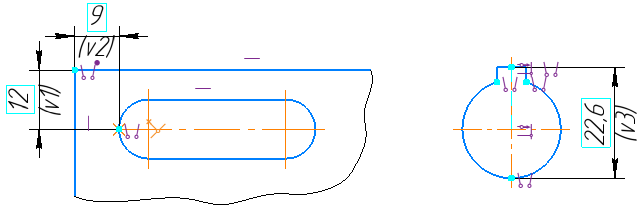
Examples of setting controlling dimensions from the midpoint of a curve
In such cases, you can use the following methods for creation — without changing the priorities of constraints — of associative linear dimension:
•Use Local SnapMiddle:
During dimensioning, before specifying the midpoint on the curve, invoke the context menu and select the Midpoint button in the Snaps group, then specify the desired curve. The system will find the middle point of the specified curve and link it to a dimension extension line using the Point in middle of curve constraint.
|
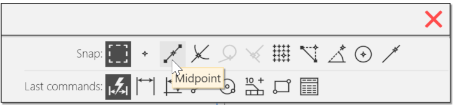
Enable the local snap Midpoint when working with the Smart Dimension command
•Exclude the coincidence of the extreme point of the designation and the midpoint of the curve:
Before setting the dimension, you can shorten/lengthen the designation line, or delete it. When specifying the exit point of the dimension line, indicate the midpoint of the curve. In the absence of point coincidence, the global snap Middle will be triggered. After placing the dimension, it is necessary to edit the image: either change the axis length again, or if the designation was removed, create it again or edit the object containing it, enabling the With Axes option.
|
In a significant number of similar cases, it is required to set the dimension between a segment and a point on the arc where it is tangential to a line parallel to the segment. That means you can use not only linear dimensions but also dimensions from line to point. It is also possible to create it as by the eponymous command, and using the command Smart Dimension |


