|
Construction of a conical curve |
Scroll |
The curve of the conical section is constructed using the Conical curve  command.

The following methods are available for constructing a conical curve:
•construction with plotted points,
•construction with the specification of tangent objects.
In the process of building, methods can be combined.
Method 1. Construction with plotted points
1.Specify the start and end points of the conical curve.
2.Specify the point of intersection of the tangents to the curve at its starting and ending points or enter the angles of inclination of the tangents in the fields. First tangent slope angle and The angle of the second tangent on the Parameter Panel.
The graphic area displays a phantom of a conic curve and tangents to it at the specified points.
3.Set the shape of the conical curve in one of the following ways:
•specify the point through which the conical curve passes,
•set the Coefficient/Curve height toggle switch to Coefficient or Curve height and enter the parameter in Value field.
More details on determining the shape of the conical curve...
4.If necessary, select the style of the curve to be created. More about selecting line style...
5.To complete the build, click Create object  .
.
6.To complete operation of the command, click Finish  .
.
Method 2. construction with the specification of tangent objects.
1.Specify the object that the conical curve will touch at the starting point, and specify a point on the selected object.
•Click on the link Objecton the Parameter Panel and select the desired curve in the graphics area. Its name is displayed in the field Object on the Parameter Panel.
If a straight-line object is specified (line segment, straight line, centerline), then it is tangential to the conical curve at its starting point. If the object is curvilinear (circle, ellipse, arc, spline, etc.), then the tangential to it at the specified point is tangential to the conical curve at that point.
•Pick a starting point for a conical curve on the selected object.
If the object is straight-line, the slope angle of the tangential to the conical curve at the starting point is automatically determined from its angle of inclination. If the object is curvilinear, a phantom tangent appears in the graphics area. The phantom touches the object at the point of indication.
By moving the cursor, select the desired tangent direction and select a point on the object. If a point is specified outside the object, then the position of the starting point is determined by the projection of the specified point on the object.
|
|
a) |
b) |
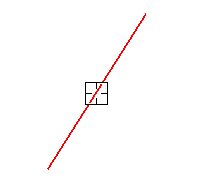
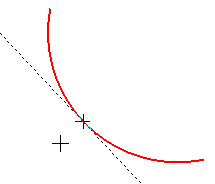
Construction of a conical curve with respect to the object
a) indication of the object, b) indication of a point on a curvilinear object
2.Similarly, set the object which the conical curve will touch at the end point, and specify the end point of the curve on the selected object.
The graphic area will display a phantom of a conic curve and tangents to it at the specified points.
3.Set the shape of the conical curve in one of the following ways:
•specify the point through which the conical curve passes,
•set the Coefficient/Curve height toggle switch to Coefficient or Curve height and enter the parameter in Value field.
More details on determining the shape of the conical curve...
4.If necessary, select the style of the curve to be created. More about selecting line style...
5.To complete the build, click Create object .
6.To complete operation of the command, click Finish .
Tips
•For precise cursor positioning and parameter setting during the construction process, you can use Snaps and geometrical calculator.
•You can select a tangent object to a conic curve by turning off snaps. To do this, select the object while holding the <Alt> (temporarily disable all bindings), or disable bindings that interfere with the indication of the object.
•If you need to manage the coefficient of a conic curve through a variable, you should create the curve in parametric mode. Details...
