|
Aligning dimension lines |
Scroll |
If required, you can position dimension lines of linear dimensions on the same line and dimension lines of angular dimensions – on the same circle (or on circles with equal radii). Alignment is based on a sample dimension.
A dimension can be aligned if its type matches the sample dimension type; linear dimensions must also have their dimension lines parallel to dimension lines of the sample dimension.
|
To align start points of dimension leaders horizontally or vertically, use the Align leader landingscommand. |

To align dimension lines of sizes, use the Align dimension lines  .
.

You can specify dimensions to be aligned either after you call the command (method 1) or before you do it (method 2).
Follow these steps to align.
Method 1
1.Invoke the Align Dimension Lines command.
2.Specify the sample dimension to be used to align by its dimension line. The dimension is highlighted while its name is displayed in the Object field on the Parameter Panel.
3.Select the dimension to be aligned. Its extension and dimension lines will be automatically re-drawn. The sample dimension will remain selected.
4.One by one, select all dimensions to be aligned by the sample dimension.
5.If you need to align other dimensions, select another sample dimension and then select dimensions to be aligned.
6.To complete operation of the command, click Finish  .
.
|
|
a) |
b) |
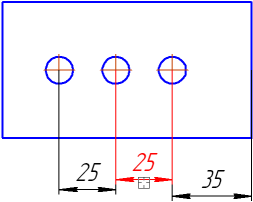
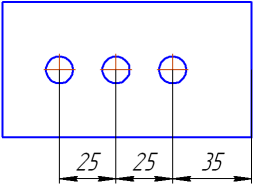
Example of aligning linear dimensions
a) specifying a sample, b) alignment result
Method 2
1.Select dimensions to be aligned. If other objects are included in the selection, it does not prevent the command from being executed (non-compliant objects are ignored during alignment).
2.Invoke the Align Dimension Lines command.
3.Select the sample dimension. The selected dimensions that can be aligned using the sample are aligned while other dimensions are ignored.
4.To complete operation of the command, click Finish .
|
You can align multiple dimension groups at the same time, e.g. vertical and horizontal dimensions. Use the following procedure. Select all dimensions to be aligned and invoke the alignment command. Specify sample dimension for the first group of dimensions – they will be auto-aligned. Select another sample dimension to align another group of dimensions, etc. |

