|
Leader Element |
Scroll |
To create a leader element designation, use the Leader Element command  .
.

Step-by-step instructions
1.Set the center of contour confining the leader element.
After that, a designation phantom will appear in the graphic area.
2.Set up the Parameters of leader element.
3.Indicate a point on the contour of the leader element or set the contour dimensions into the respective fields on the Parameter Panel.
|
If the leader element contour is shaped as a rectangle or a rounded rectangle, its sides are parallel to the axes of the view's coordinate system (or, in a fragment, to the axes of the absolute coordinate system), regardless of the current LCS. |

4.Automatically generated caption text is displayed in the Text field and on the phantom of the section. If necessary, change the caption and/or its typeface. Generation of the caption text for a leader element designation is similar to Generation of the designation text for the direction arrow.
5.Specify the starting point for the landing. After you indicate this point, creation of leader element designation ends automatically.
|
For precise setting the position of designation, it is possible to use Snaps and geometrical calculator. |
|
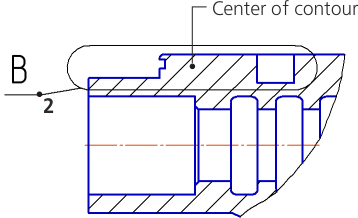
Designation of position of a leader element
Immediately after the creation of the leader element, it automatically starts Command to create a new view. After execution of this command, in the drawing there appears a view whose designation will be associatively linked to the created leader element designation.
|
You can give up creation of a new view by pressing the Finish button on the Parameters toolbar or the Quick Access toolbar. However, it is not recommended to do that, since manual creation of a view and generation of a link between its designation and the leader element designation will take extra time. Besides, placement of the image of a leader element in a separate view allows for rapidly changing the scale of image and makes the layout of drawing more convenient. |
If designation was created in an associative view, the new view is also associative. It contains a model projection.
However, if designation was created in a normal (non-associative) view, the new view is regular as well. It contains copies of the objects of the initial view that fell into the designation contour. Details...
Setting a leader element may automatically create hyperlink, linking the designation to the newly created view.
