|
Working with caption and table |
Scroll |
Controlling visibility of captions and tables
You can hide a caption or a table in a model The same methods are used for that, as for working with dimensions and designations.
To hide a caption or table, select it in the Design Tree or in the graphic area of the model and click the Visible  icon in this object's row in the Design Tree.
To hide all captions or tables in a model, call the View — Hide — Captions  or Tables
  respectively.
To learn more, see section Control of visibility of dimensions and designations.
Transferring data from table to drawing
You can transfer a caption or a table to a drawing when creating associative model views, as for dimensions and designations, see the Creation of projection designations.
A caption transferred to a drawing is displayed as a text.
A table transferred to a drawing is displayed as a table.
Editing the caption and table
You can use the following methods to edit a caption or a table.
•Double-click the left mouse button on the text of the title or table. This will start the Entering text, and the text will become available for editing.
Double-click on table grid activates the mode of table editing.
•Call the command Edit from the context menu of the object in the Model Tree or in the graphic area  . The command for captions or tables of the. Edit the necessary parameters and confirm the changes made.
To change position of a caption or a table in the graphic area, you can use the defining points as described further.
Setting the position of caption and table using defining points
While creating or editing a caption or a table, the defining points of two types –  and
and  , are displayed on a phantom; see the figures below.
|
|
a) |
b) |
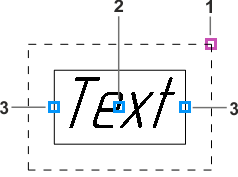
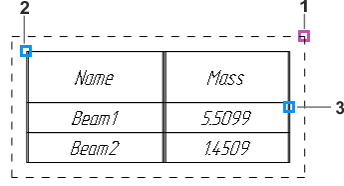
Defining points:
a) for a caption (with the placement method of the text Centered), b) tables
You can specify the position of a caption or a table using defining points.
•Point 1 allows the plane of the object to be offset parallel to the base plane.
•The 2 ratio allows moving the object within its plane.
To move a caption or a table, hover the mouse pointer over its defining point. When the cursor takes the shape of a quadrilateral arrow , click the left mouse button and, without releasing the button, move the cursor. When the point reaches the required position, release the button.
•The point 3 allows you to rotate the object in its plane around the snap point.
To rotate a caption or a table, hover the mouse pointer over its defining point. When the cursor takes the form of two arc-shaped arrows , click the left mouse button, hold it down and move the cursor.
