|
Caption |
Scroll |
You can createa label in a model. A caption allows you to display arbitrary text in the graphic area. The caption plane is parallel to the specified base plane. The base plane is defined automatically by the software, but you can change base plane definition later.
To create a caption in a model, use the Caption command  .
.

Step-by-step instructions
1.Use one of the following methods to set the position of the text snap point:
•Click in an arbitrary point of the graphics area.
•Set the point object in the graphic area or in the Design Tree.
•Construct a point by clicking Build Point  to the right of the Snap Point field on the Parameter Panel. Will start subprocess of plotting a point.
After you specify the caption snap point, the text input subprocess starts.
2.Enter the text of the caption. Controls for text parameters are the same as for creation a caption in a graphic document. For text you can use all the techniques for working with texts, except for the insertion of vertical text, illustrations and tables.
When you finish entering text, the system returns to the caption creation process.
3.If necessary, change the automatically selected base plane of the label. Any flat face, a coordinate plane, or construction plane can be used as a base plane.
4.Enter the slope angle for text rows relative to the X axis of the coordinate system of the label plane in the Angle field. When you change the angle, the caption is rotated within its base plane, centered at the snap point.
5.Select a method for placing text relative to the snap point using the buttons of the Text Location group: Right-side view  , Centered
  , and Left
  . You can use the same placement methods ad for placing a label in a graphic document.
6.If necessary, specify the object(s) of the model to which the created annotation relates in the Covered Entities section. Activate the field Objects and specify the desired object in the Design Tree or in the graphic area of the model. Name of the selected object appears in the field.
Later, when you select the caption, the graphic area displays its applicable objects.
7.If it is required, specify the name of the caption in the Name field in the Properties section.
8.To complete creation of the mark, press the Create object  .
.
A caption will appear in the graphic area, and its icon in the Design Tree .
9.To complete operation of the command, click Finish  .
.
|
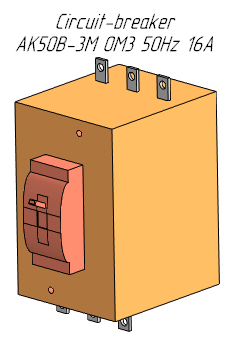
Example of caption in model
See Also
