|
Table |
Scroll |
You can create a table with arbitrary text in a model. The table plane is parallel to the specified base plane. The base plane is defined automatically by the software, but you can change base plane definition later.
To create a table in the model, use the Table  command.

Step-by-step instructions
1.Use one of the following methods to set the position of the table snap point:
•Click an arbitrary point in the graphic area with the mouse.
•Set the point object in the graphic area or in the Design Tree.
•Construct a point by clicking the Draw point button  to the right of the Snap Point field on the Parameter Panel. Will start subprocess of plotting a point.
A snap point is located at the left upper corner of the table.
When the snap point is set, the New Table dialog.
2.If you need to create a new table, set the parameters in the dialog (number of columns and rows, cell size, header position) and click Create.
If you prefer to insert an existing table, click From File in the dialog and specify the table. More information about insertion of table from a file...
After you close the dialog, a table with the provided parameters appears in the graphic area and a subprocess of text inputwill start.
3.If necessary, set up the created table: add/delete rows and columns, split/merge cells, change cell sizes and their border line style etc. For more details on setting up tables...
4.Enter the text in a table cell and configure its formatting. For text you can use all the methods of Working with Texts, except for the insertion of fragments, illustrations, and vertical text into table cells.
When you finish entering text, the system returns to the table creation process.
5.If necessary, change the automatically selected base plane of the table. Any flat face, a coordinate plane, or construction plane can be used as a base plane.
6.Set the slope angle for table rows relative to the X axis of the table plane coordinate system in the field Angle. When you change the angle, the table is rotated within its base plane, centered at the snap point.
7.If necessary, specify the model object(s) to which the created table applies in the Covered Entities section. Activate the Objects field and specify the desired object in the Design Tree or in the graphic area of the model. Name of the selected object appears in the field.
Later, when you select the table, the graphic area displays its applicable objects.
8.If required, enter the table name in the Name field in the Properties section. After table creation this name can be displayed in the graphic area.
9.You can set the table color by selecting the required line in the Color list. More about Control of Object Colors...
10.To finish creating the table, click Create object  .
.
A table appears in the graphic area, and its icon .
11.To complete operation of the command, click Finish  .
.
Example of table in model |
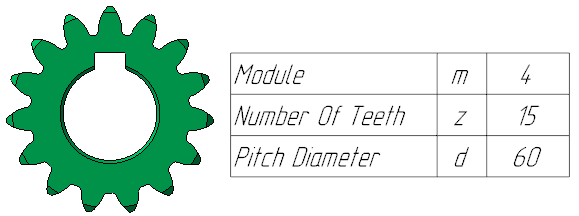
Displaying caption in the graphic area
Table name can be displayed in the graphic area. To enable/disable the display of the name, invoke the Name command from the context menu of the table selected in the Model Tree or in the graphic area.
See Also
