|
Extending an object. Alignment by border |
Scroll |
Geometric objects in KOMPAS-3D can be:
Extension to the nearest object means extending a curve from the end point the cursor was closer to at the time of specifying the object, to the nearest point of intersection with a geometric object, an axis or a break line (including those which are contained in macro-elements and inserts). If none of these objects intersects with the extension of the selected curve, then extension is not performed.
Alignment by border means extending curves up to the alignment border or trimming them by that border. In case of trimming, the part of the curve where the cursor was located at the time of specifying the objects, remains in the document.
As the border you can use any geometric objects, and any of them can be aligned by border except construction straight lines.
You may need alignment, for example, when constructing images of revolved solids (see figure), as well as in many other cases.
|
|
a) |
b) |
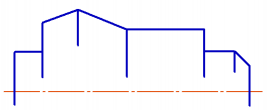
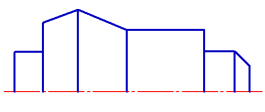
Performing alignment: a) the original image, b) the operation result
|
Bezier and NURBS curves can be trimmed only by border, extending them using the extension or alignment commands is not possible. |

You can extend an object to the nearest point of its intersection (or tangency) with another object using the Extend to next object  command.

Step-by-step instructions
Select the object to extend.
To specify a group of objects, you use a cutting segment.
The object will be automatically extended to the nearest point of its intersection or tangency with another object.
To complete operation of the command, click Finish  .
.
|
|
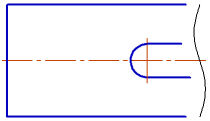
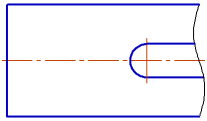
The original image and the image after extending segments
|
If there are multiple objects some of which should be extended until intersection with an object, and some should be trimmed at the point of intersection with the same object, use the Drag to Border. Note that you can extend an object using this command both up to the explicit points of intersection with the border, and up to the points of intersection with its extension, while the Extend to Next Object command extends the object only up to the explicit points of intersection with other objects. |

You can extend objects to the specified border or trim by it, use the Drag to Border  .
.
Step-by-step instructions
1.Specify the curve that will be the alignment border. Its name will appear in the Object field on the Parameter Panel.
2.Specify the objects to align. Objects can be specified one by one or in a group. To specify a group of objects, you use a cut segment.
If the object intersects with the alignment border multiple times, all the intersections are taken into account.
After the objects are specified, the alignment will be done automatically.
|
Extending a circular arc or an ellipse arc up to a NURBS or Bezier curve is possible only if the arc extension intersects with the curve at least in two points. |
3.To complete operation of the command, click the Finish .
|
|
a) |
b) |
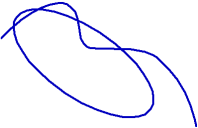
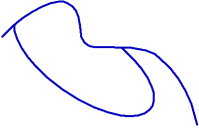
Performing alignment: a) the original image, b) the operation result
