|
Hatch style selection dialog box |
Scroll |
Allows you to select the current hatch drawing style.

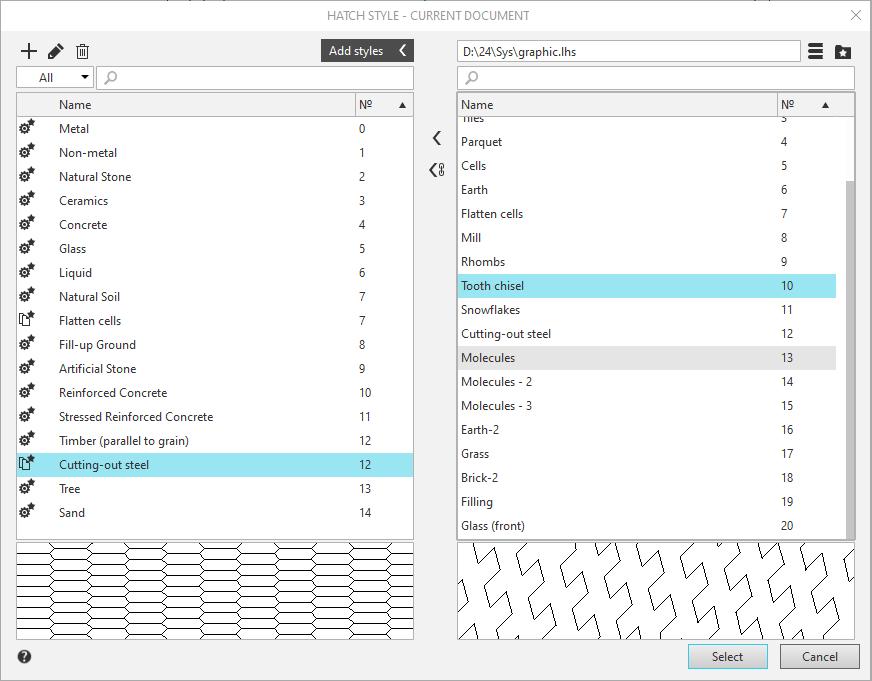
Immediately after opening, only the left side of the dialog box appears on the screen, displaying a list of hatching styles for the current document. The styles are marked with icons:
 — system style,
 — embedded style,
 — library style; an exclamation mark in a red circle may appear next to the style name
 , if style list link with the library.
When expanded, the dialog has two windows. The right side of the dialog is used to select a library (or set) of styles and add them to the document's style list. Only one viewport can be active at a time. Activation is accomplished by clicking on the window.
Above each viewport is a search field where you can search for hatch styles by number or name. In the left window, the search is filtered by hatch style type. To find the required style, enter the search characters in the search field, then select the desired line from the search results list.
Styles in the list can be sorted by name or number. To change the sorting, click the desired column header. A triangle appears in the column header by which styles are sorted. Its position indicates the sorting direction—ascending or descending. A sample of the style whose name is highlighted in the list is displayed in the preview field at the bottom of the dialog.
Description of controls
The element |
Description |
|
Left window controls |
||
|
Create |
This button allows you to create a hatching style. The new style is added to the list of document styles as an embedded style. After pressing the button it opens dialog of creation/hatch style editing. |
|
Edit |
The button allows you to edit the selected hatch style. Available if an embedded style is selected in the document style list. After pressing the button creation dialog/hatch style editing opens. |
|
Delete |
The button allows you to delete the selected style(s). Available if an unused style(s) — embedded or library—is selected in the document style list. After clicking the button, a dialog opens asking you to confirm the deletion or refuse it. |
|
Filter |
This field is used to select a filter for the current document's hatch style list. The set of filters is determined by the current hatch style list. The full set includes the following filters. •All •System styles •Embedded styles •Library styles By default, the All option is selected in the list, which matches the entire list. To apply a filter, select it from the list. Only those styles that match the filter will remain in the style list. |
|
Add styles |
Click the button to add styles from a library or set to the document's hatch style list. The dialog box on the right will appear, with controls described below. To collapse the dialog box, click the button again. |
Right window controls |
||
|
Show library... |
A button for selecting a hatch style library. Clicking it opens a dialog box in which you can select a hatch style library file (*.lhs) and click Open. A list of hatch style libraries will appear in the preview window. |
|
Show set |
A button for selecting a hatching style set. Clicking it will open a dialog where you can specify the set's name and click the Select button. A list of the set's hatching styles will appear in the preview window. |
|
Copy |
This button allows you to embed one or more library styles or styles from a style set into a document. This button is available if styles are selected in the list of library styles or styles from a style set. After clicking the button, the selected styles are included in the document list as embedded styles. Styles embedded in a document from libraries do not maintain links to the files in those libraries. |
|
Copy by link |
This button allows you to add one or more library styles to the document's style list. This button is available if styles are selected in the library style list. After clicking the button, the selected styles are added to the document's style list as library styles. Library styles maintain a link to the library files from which they were added to the document. |


After selecting the desired style from the list, click the Select button to set the hatching style to that style. To exit the dialog without saving your changes, click the Cancel button.
