|
Opening and closing documents |
Scroll |
In this section:
Step-by-step instructions
1.Open the Open command using one of the following methods:
•from the File menu,
•by clicking the Open... link on the Home page,
•from the Home Page button menu  .
.
2.In the file open dialog that appears choose the file name and press the Open button.
The selected document will be opened in KOMPAS-3D in a separate tab.
|
import Documents created in other applications can be imported into the *KOMPAS-3D* format. The import process is similar to opening a file: first, select the file type, and then specify the file itself. |

If you try to open an already loaded document, KOMPAS-3D will not perform a repeated opening, but will simply activate the tab of this document in the current window or the KOMPAS-3D window with this document, if it is opened in a separate window.
|
If you try to open the document that is already loaded, using the alternative path (for example, if you try to open from network location the same file that is stored locally and is already loaded in the current working session), the message appears on the screen: The file is already being edited. |
If multiple files are selected to be opened, a message is displayed In the bottom right-hand corner of the graphic area. It displays the complete name of the document file you're currently opening and the loading indicator. The link Cancel in this message allows you to cancel the loading of the remaining documents in the group (i.e. those documents whose loading has not yet started).
|
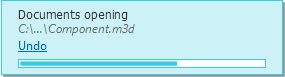
Opening documents indicator
Additional Methods for Opening Files
•If you recently opened a document and closed it, you can reopen it from the recent documents list. The list is located on the start page and can also be accessed from the File—Recent menu or from the Home Page button menu. To open a document, click on the document name in the list. The list of recent documents is available if its display is enabled in the settings dialog.
•You can open the document by dragging the file from the file manager into the "KOMPAS-3D" window. Specify a document file (files) in the Explorer and drag it using the mouse. When the cursor is placed over the window KOMPAS-3D, it will be filled. Highlight Color, a window will open showing the label Open. To open the document, release the mouse button.
When dragging a model file into the KOMPAS-3D window with the current assembly document, you can either open the model or insert it into the assembly as a component.
•If you cannot open the selected KOMPAS-document or problems occur after you open it, you can try to fix the document by opening it using the File — Open with Verification command. More details about opening with verification...
You can close the current document using one of the following methods.
•Invoke the File – Close command.
•Invoke the Window — Close current tab command.
•Click the «x» icon in the document tab header.
•Invoke the Close command from the document tab context menu.
If necessary, you can close all opened documents by invoking one of the following commands of the File menu:
•Close all documents (the command is also available in the context menu of the document tab) — all open documents will be closed,
•Exit — all open documents will be closed, all unsaved documents will be saved, and the working session with KOMPAS-3D will end.
If the document contains changes which were not saved, a request to save the document being closed will appear on the screen.
