|
Additional features when building rectangles and polygons |
Scroll |
A rectangle/polygon can be constructed as a single object or as several separate segments. The build option is determined by the state of the option Explode Object.
•If the option is disabled, a rectangle/polygon is constructed as a single object. Such an object is selected/moved/edited as a whole. This option is the default when working in a graphic document.
•If this option is enabled, the rectangle/polygon is divided into separate segments corresponding to its sides. Such an object cannot be selected/moved/edited as a whole — each segment is processed separately. This option is the default when working in the sketch.
If construction with the destruction of the object is performed in parametric mode, then besides segments — sides of the rectangle/polygon are also created:
•for a rectangle – the segments corresponding to its diagonals, and their point of intersection;
•for a polygon, a circumscribed or inscribed circle.
In addition, in the parametric mode, constraints are imposed on the objects obtained so as to maintain their mutual position.
|
|
a) |
b) |
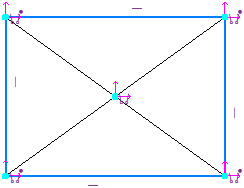
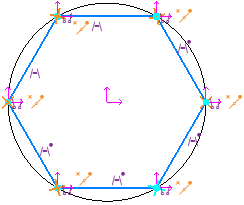
Constraints imposed in the parametric mode:
a) on the objects that make up the rectangle,
b) on the objects that make up the polygon
|
If necessary, a rectangle/polygon, created as a single object, can be broken into segments using the command. Explode from the context menu. In parametric mode, the result of such an explosion (unlike creation with the option Explode object) is a set of segments constituting the sides of a rectangle/polygon, without additional objects and constraints. |

Building centerlines
By default, rectangles and polygons are constructed without centerlines.
In order for the created object to have centerlines, enable the option on the Parameter Panel With Axes.
Centerlines are a systemic macro-element – center mark. Center mark is not connected with rectangle (polygon) and is not rebuilt during its further editing (changing parameters or position).
You can also add axes to rectangle or polygon with the Center mark command.
|
While working in parametric mode, the center mark is created associated with a rectangle (polygon). |
If a rectangle is built with axes, then creating a controlling dimension from the midpoint of its side presents a certain complexity. The issue is that, by default, the dimension in this case is not linked to the rectangle, which is why it cannot be associative. To set the dimension to the rectangle, you can use a local snap or temporarily disable the coincidence of the defining points of the rectangle and the centerline during the dimensioning process. Details...
Line Style Selection
The current line style is displayed in the field of the same name in the Parameter Toolbar. To change the style, expand the list Style and select the desired line. More about selecting line style...
Remembering parameters
When sequentially building arcs that have a number of identical parameters, the values of these parameters (common center, common verex, etc.) can be remembered until the command is completed. To do this, specify the parameter values common for the objects, click the  Remember Status button, and then continue building. More information about remembering parameters...
Example. Construction of several rectangles having a common center.
1.Call the Rectangle by Centerpoint and vertex command.
2.Set the center of the rectangles.
3.Click the Remember Status button.
4.Consistently specify the points of vertices and construct the required number of rectangles.
