|
Special Print |
Scroll |
Using special print, you can output the current document to printing devices which allow you to adjust the size of the print page according to the document sheet on the fly, during the printing process. For example, you have a multi-sheet document with sheets of various sizes. When using the Special Print feature to output this document to a virtual XPS printer, an XPS file will be created, and the size of the pages in this file will match the size of the sheets in the document.
When you use the Special Print feature for printing fragments and models, a single-page document is created, and the size of this page matches the dimensions of the image of this fragment or model.
|
When you print a multi-sheet document with different sheet formats in a regular way, it may be required, depending on the configured print page size, to split the document sheets into several parts (according to the size of the print page) or to group several sheets in one print page. |

Setting up and Printing Documents
To set up special print and to print the current document, use the Special Print...  command.

After you run the command, the Special Print Document dialog box appears on the screen.
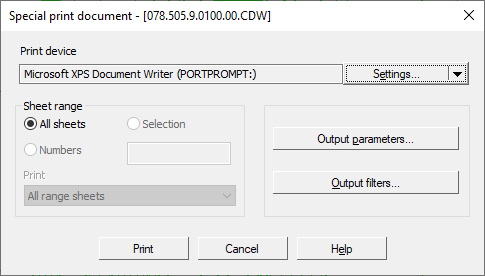
Special Print Settings dialog box
Using the controls in this dialog box, you can set the range of sheets to print, specify the numbers of the sheets to print, and their order (even, odd).
Using the Settings... button, you can select the required printing device and specify its parameters (see section Selecting and Setting up a Printing Device). Using the menu of this button, you can use configurations of printing devices (see Section Printing Device Configurations).
You can configure advanced print settings in the corresponding dialog box. To open it, click the Output Parameters... button (see section Advanced Print Settings).
The Output Filters... button allows you to open the Output Filter Settings dialog box for objects of the document you want to print.
After you have configured printing settings, click Print to start printing the document using the specified printer. Click Cancel to close the dialog box without printing the document.
|
If you have selected an output device for special print with no support for changing page sizes while printing, then the document will be printed as in the regular printing mode: the default page size of this printing device will be used. |
