|
Creation and editing of a table of variables |
Scroll |
Creation of a table of variables
To create a table of variables in the current file, do the following actions.
1.Enable the display of the Variables Panel using the appropriate command from the Settings — Panels  menu.
menu.
2.Press the Table of Variables  in the header of the Variables toolbar.
This option opens the dialog Table of Variables. The newly created table of variables is empty.
3.Create a table.
3.1. If the required table was created in advance and saved in an Excel file format, then press the Read from file  button on the toolbar of the Table of Variables dialog. In the file open dialog that appears choose appropriate file and press the Open button. If the selected file meets the requirements, the table will be populated with data from this file.
|
It is not recommended that the *.xls file be open in MS Excel during the data transfer from this file to KOMPAS-3D. |

3.2. If the file already has external variables, then click Read external variables  button. In the table, there will appear columns matching the existing external variables of the file.
|
Only those external variables which are not of info purpose are automatically input into the table of variables. |
3.3. Add to the table the required number of rows and columns using the buttons:
 Insert row above
 Insert row below
 Insert Column to the Left
 Insert Column to the Right
3.4 Enter comments to the rows, and the values of variables.
4.Close the Table of Variables dialog using the Apply button.
The created table will be added to the current file. After the table is created, the icon on the Variable Table  button.
|
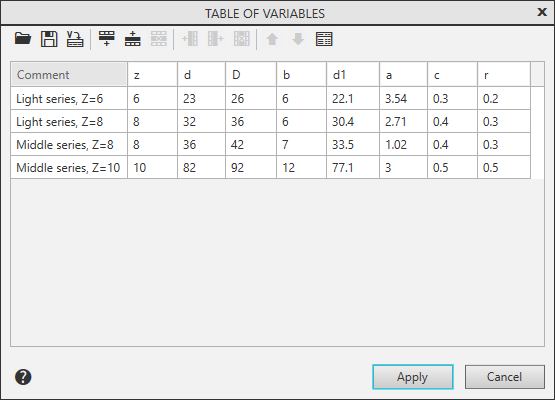
Editing a table of variables
Editing a table of variables is almost similar to its creation. To begin editing, open the Table of Variables dialog by clicking the Table of Variables button in the header. Variables toolbar. The following options for editing a table of variables are available.
•Replacement with a table written in an Excel format file. For this, press the Read from file button.
•Adding of columns matching external variables of the file. For this purpose, click Read external variables button. External variables of a file which are not yet there in the table will be added into it.
•Renaming of columns. For that, select the required column and enter a new name in its header.
•Adding of rows before or after a selected row.
•Adding columns before or after a selected column.
•Deleting selected rows  .
.
•Deleting selected columns  .
.
•Moving the selected row up  .
.
•Moving the selected row down  .
.
To edit a comment or the value of variable, click the required cell, then enter a new text or number.
