|
Creating, editing and deleting the table of modifiable variables |
Scroll |
Creating table of modifiable variables
To create a table of modifiable variables it is necessary that the object being copied has variables that influence its form and dimensions. Variables can be created manually or automatically (for example, when specifying numeric parameters of an operation). When copying a component, prerequisite for construction of the table is presence of external variables.
To create a table of modifiable variables of an array, perform the following steps.
1.When working with an array, expand the Instance parameters section and click the field name Table of modifiable variables.
This option opens the dialog Table of modifiable variables, containing a table. The table contains a column with array instance numbers (the number of instances is determined when specifying the array parameters).
For the type of objects Operations; Curves, points, construction geometry and Arbitrary in the graphical area of the model, dimensions corresponding to the variables of the copied object will also appear (see figure).
|
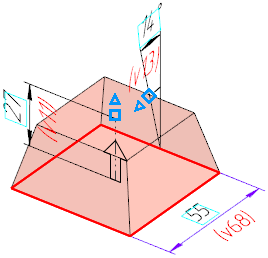
Display of dimensions that correspond to variables of bump operation
|
If variable names are not displayed on dimension lines, you can turn on their display in the graphical region of the model. Details... |

2.Create a set of variables of the object being copied containing variables whose values must be changed for the instances.
•To add all variables, press Read Variables  button on the dialog toolbar panel.
•To add individual variables, use one of the following methods:
•Press the Insert Variable  button on the toolbar of the dialog,
•specify required dimension of the object being copied in the graphic region of the model (for objects of all types but components).
An individual column is created in the table for each variable. Value of variable for the base instance is displayed in first row cell. Cells of another rows are empty. This means that values of the variable for rest of the instances are the same as value for the base instance.
|
Variables of certain operations (such as Hole from the library, Thicken, Kinematic operation and some others) cannot be added to the set. |
3.Set new variable values in one of the following ways:
•input of a new variable value into a table cell,
•Setting variable change step.
Values of base instance variables cannot be changed – row with these values has gray color (editing disabled).
4.When you’re done with dialog Table of modifiable variables, close it by pressing OK button.
The created table will be added to the file of current model. Array instances will be rebuilt according to new variable values.
Practices of handling the table of modifiable variables...
|
The table of modifiable variables is created automatically when you edit array instance dimensions in the model graphic area (see section Array instance dimensions) or when editing the variables corresponding to these dimensions on the Variables toolbar. Columns with altered variables are added to the table. |
Editing table of modifiable variables
To start editing table of modifiable variables, expand the Instance parameters section and click the field name Table of modifiable variables. A dialog with a table appears on the screen.
Editing of table of modifiable variables is performed similar to creation of this table.
Practices of handling the table of modifiable variables...
Deleting table of modifiable variables
If table of modifiable variables in file is no longer necessary, you can delete it. To do this, expand the section Instance Parameters and click on the icon  in the field Table of modifiable variables. As the result:
•changed values of variables for instances are removed from the file;
•instance variables take values equal to values of corresponding variables of the base instance;
•instances are being rebuilt and become exact copies of the source object of the array.
