|
Methods for working with a table of modifiable variables |
Scroll |
To work with the table of modifiable variables you can use the buttons on the toolbar of the dialog Table of modifiable variables. Actions performed using these buttons are described below.
Reading data from a file and saving table into a file
Read and write buttons are enabled when table of modifiable variables contains any editable cells (they have white color). If the table is empty or contains only non-editable cells (of gray color), these buttons will be disabled.
To populate the table with data from an existing data file, press Read from the file  button. In the file open dialog that appears choose appropriate file and press the Open button. Data currently contained in the table will be replaced with data from a file.
To save the table to a file, press Save to file  button. File write dialog appears. Specify file location and name (by default the file gets txt extension) and press the Save button.
•If you save the table during Enter values of variables, the numerical values of the variables are written into the data file.
•If you save the table during setting the variable value change step, the steps of change are recorded in the data file.
|
While working with array by table Populating the table of editable variables with data from a file and saving the table into a file have specific features. This happens because the table contains not only variables but also coordinates of the points which specify array instance positions. Coordinate values can be obtained from a file and saved to a file. Details... |

Adding variables of the object being copied into a table
To add a variable to the table, click the Insert variable  . Variables dialog appears listing variables of the object being copied. Specify the required variable and press OK button. Selected variable will be added into the table (an individual column will be created for it).
To add all variables of the copied object into the table, press Read Variables  button. Columns for all variables of the object being copied appear in the table.
If the table already contains some variables, then after pressing Read variables button the rest of variables of the object being copied will be added to the table as well.
|
Info variables are not added into the table of modifiable variables. |
Removing variable column from table
To remove a variable column from the table, select the relevant column or any of its cells and click the Delete column  . In this case values of variable that were set for array instances will be removed.
Changing variable column order
To change position of a column for a variable in the table, click and drag its header to required position (see figure).
|
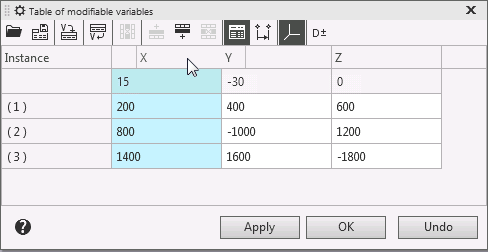
Changing the column order in the table of modifiable variables
Changing the number of table rows
(for an array by table)
Number of table rows is equal to number of array instances.
For arrays By grid, By Circular Pattern and along a curve The number of instances is determined when specifying array parameters, and for array by points — is determined by the specified points. Thus when working with these arrays you cannot control number of table rows using buttons of Table of modifiable variables dialog.
For array by table The number of instances is determined by data from a file or coordinates entered in the table of modifiable variables. If data is obtained from a file then changing number of rows in table is unavailable as well. If coordinates are entered manually, you can control number of rows with following buttons:
 Add a row above (available if a row or cell is selected),
 Insert row below,
 Delete rows (available if a row or cell is selected).
Changing method of variable value setting for instances
When constructing an array, two methods for setting variable values are available:
•input of values into table cells — performed with the Values of variables  ,
,
•setting value change step – performed with the Value step  button.
To choose the required method, press the relevant button. Table view will change.
If table contains values entered using one of the methods then during switching to another method these values are used as base for calculation: variable values are used for step calculation or, conversely, step is used for calculation of variable values.
Table can contain variables whose values do not represent an arithmetical progression (i.e. change step cannot be determined). In this case, setting a step is only possible if these values are removed: after clicking the Value step , the corresponding request appears on the screen. You can press Yes button to delete values and start setting step, or press nan button to cancel setting step and retain existing entered values.
After you finish working with table (by closing the dialog with OK button), system retains the data that correspond to the current method; that is, if current method was entry of values, then variable values are retained, but if step setting method was active, then step value is retained.
For detailed information on the methods of variable value setting...
Enabling/disabling coordinate display in table
(for an array by table)
When you plot a array by table The table of modifiable variables contains not only variables but also coordinates of the points which specify instance positions.
The display of coordinates in the table is controlled by Set base point coordinates  button: if the button is pressed, the coordinates are displayed, and if the button is released, they are not.
Enabling/disabling display of individual tolerances in table
The display of individual tolerances in the table is controlled by the Display Individual Tolerances  button: if the button is pressed, the tolerances are displayed, and if the button is released, they are not.
More about individual tolerances in the table of modifiable variables...
Restoring base values of variables
To make variable value equal to value of the base instance, remove the value set for this variable from its cell in the table. Variable cell will become empty (empty cell means that variable value is equal to base value).
You can delete a value manually or use context menu commands.
•Value by base one – lets you delete a value from the selected cell or delete all values in the selected column (to select a column, click its header).
•All values according to the base value – lets you delete values from all table cells except cells which correspond to the base instance. After invoking this command variable values for all array instances will be the same as base instance values.
See Also
Creating, editing and deleting the table of modifiable variables
