|
Setting new value for instance variable |
Scroll |
New values of instance variables are set in the Table of modifiable variables using one of two methods:
•typing variable values into table cells (Variable values  button),
•setting variable value change step (Value Step  button).
Switching between methods of variable value setting has its own peculiarities. Details...
Step-by-step instructions for each of methods is described below.
Method 1. Enter variable value
1.To start entering (typing) variable values, press Values of variables button on the Parameters toolbar in the dialog. Table of modifiable variables.
Dialog table will contain a column with numbers of array instances as well as columns of variables that have been added to the table.
Values of variables for the base instance are displayed in the first row of the table. They cannot be edited.
Cells of other rows (white-colored) are designated for entry of variable values for the instances being created. These cells are initially empty. This means that values in cells are equal to values of the corresponding variables of the base instance.
2.Enter required variable values into cells.
A number or an expression for value calculation can be entered as a value of variable. The procedure for entering expression is similar to one described in section Entering an expression.
You can use arrow keys to navigate through cells.
If value of instance variable should be equal to value of base instance, leave a cell blank.
An example of table with specified variable values is provided on the figure.
|
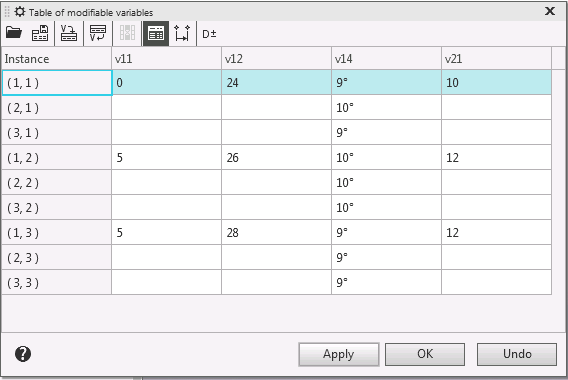
Table of modifiable variables with specified variable values (Array by Grid)
3.If table contains variables of sketch dimensions or operations of the object being copied, you can change tolerances for these dimensions. You can also control displaying of tolerances in the table.
More details about individual tolerances in the table of modifiable variables...
Method 2. Setting variable change step
1.To start setting variable change step, press Value Step in the dialog toolbar. Table of modifiable variables.
Dialog table will consist of columns of variables added to the table and of two rows:
•Value – cells of this row contain values of base instance variables and cannot be edited,
•Step – cells of this row let you enter step for changing values of variables relative to base values.
2.Enter step for change of each of the variables. To do this, enter the required value into corresponding cell of Step row. Step value can be either positive or negative.
You can use arrow keys to navigate through cells.
If you need value of a variable for all instances to be the same as for base instance, leave a step entry cell blank.
An example of table with specified change step values is provided on the figure.
|
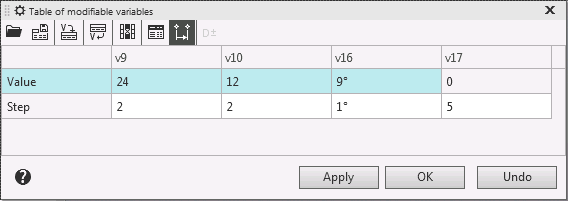
Table of modifiable variables with specified variable change step
Notes on the calculation of variable values
Value of variable calculated for a certain instance depends not only on instance number but also on the type of the array.
•In arrays by parallelogram grid and By Circular Pattern The values of variables for instances are changed according to the schemes shown in the figures.
|
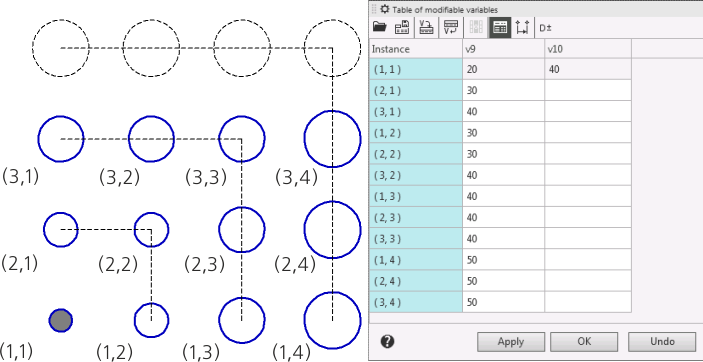
Pattern of changing variable values with specified step
(for array instances by parallelogram grid)
|
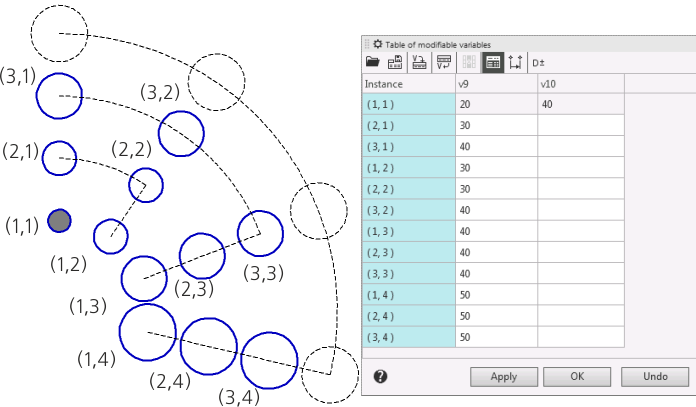
Pattern of changing variable values with specified step
(for array instances by concentric grid)
•In arrays Along Curve, By points and By table The values of variables for instances are changed with the specified step in the order of increasing instance numbers.
|

Scheme of changing variable values with a specified step according to instance numbering order
(array construction along a curve)
Thus in first case some of the instances have same values of a variable while in second case all variable values will be different.
See Also
Creating, editing and deleting the table of modifiable variables
