|
Replacement of faces |
Scroll |
The Replace Faces command serves to replace faces  .
.

Step-by-step instructions
1.In the graphic area, specify the face (faces) of the solid to be replaced.
The selected face will be highlighted. The name of the face is displayed in the Basic objects field on the Parameters toolbar.
|
The replaced faces must belong to the same solid or surface. |

2.Click in the field Replacement objects. Specify a face or a plane in the graphic area that will replace the base objects. The phantom of the modified solid will appear in the graphic area.
3.If there are multiple variants of the operation result, you can view all of them and select the necessary one.
Switching between operation results is done using the Previous Solution  and Next Solution
  buttons. With each clicking of these buttons, a phantom reconstruction occurs in the graphic area.
|
|
|
a) |
b) |
c) |
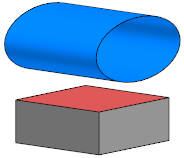
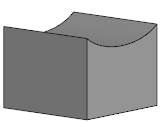
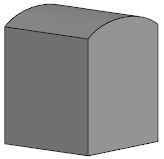
Replacement of a face:
a) replaceable and replacing faces,
b) the operation result — first solution, c) the operation result — second solution
4.If it is required that the result of the operation includes faces offset from the replacements by a specified distance, then enter its value in the Move field on the Parameter Panel. The counting direction is set using the To object  / After object
  button to the right of the Move field.
5.If necessary, change the operation name in the Properties section on the Parameter Panel.
6.To complete the operation, click Create object  .
.
The selected face will be replaced, and the corresponding icon will appear in the model tree.
7.To complete operation of the command, click Finish  .
.
Tips
•The face offset value can be set in the graphic area using the defining point.
•To set the displacement value of the face on the Parameters Panel, you can use geometrical calculator.
•You can assign tolerances to the values of the operation parameters expressed in linear values. To do this, call the Tolerance command in the menu of the required parameter, or click the  icon displayed in the parameter field (the icon is displayed if a tolerance is assigned to the parameter value). More details on assigning tolerance...
