|
Indication of Property Cells without Link to the Source. Restoring the Link |
Scroll |
Values of properties of the product constituent parts are specified in source files of these constituent parts. In a document for a product that includes these constituent parts, their properties can remain unchanged, i. e. coincide with the source — in this case changes from the source will be transferred to the product document, or may be different — in this case changes will not be transferred.
For example, when the part file was created, it was named Support. When the part is inserted in the assembly, it has its original name retaining the link to the source. Since the assembly allows changing the values of component properties, you can edit the name of the part, for example, assign the name Crosspiece. As a result, the link of the Name property with the source will disappear.
The new name will be reflected in the assembly BOM, and the part file will retain the old name, i. e. Support. If the name in the source file of the part changes, this will not affect the assembly BOM. If you want to restore the link, start the process of editing properties of the component-detail in the assembly and click By Source button  for the Name property on the Parameter Panel. After that, the current value of the property (Crosspiece) will be replaced by the property from the source (Support).
The Designation and Name property cells that are not linked to the source are highlighted with a red marquee in the BOM table to distinguish them from property cells with a link. The marquee is displayed when working with BOM items in the subordinate modeas well as when working in a BOM document to which an assembly or an assembly drawing is connected.
|
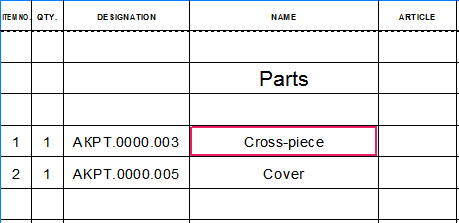
Red marquee around a property cell without link to the source
If you need to disable the display of marquees, run the View — Select Property Cells without Link to Source command.
When working with BOM items in the subordinate mode, you can quickly restore the link between the property and the source. To do this, use the By Source command in the context menu of the cell. Running this command activates determination of the value of the corresponding property by source. As a result, the current value of the property in the cell is replaced with the value from the source file, the red marquee around the cell disappears, and the By Source command in the cell's context menu becomes unavailable.
|
It is impossible to cancel the action of the By Source command in subordinate mode. If you want to restore the previous value, you should edit the properties of the product constituent part or close the document without saving. |

Please note that the By Source command is only available in the subordinate mode of working with the BOM. There is no such command in the BOM document. In this case, to restore the link perform the steps described above: open the document connected to the BOM and edit the properties of the constituent part in it. You can also start the subordinated mode of working with BOM items in the document, find the required object and cell, and run the By Source command for the cell.
|
The functions described above are available only for BOM items generated automatically based on the properties of the product constituents. You can connect a document to a manually created BOM item, so that property values, including Designation, Name, and Format, will be taken from this document. The values of the properties obtained from the connected document can be edited, however in this case the cell will not have a red marquee and the By Source command will not become available. To restore the link, use the Get Properties from Document |
 and
and 
