|
Attaching the Document to BOM and Detaching the Document from BOM |
Scroll |
Attaching the Document to BOM
1.If the BOM has not yet been created, create it using the File — Create command.
2.If required, change the BOM style using the Settings... — Parameters — Current BOM — Style command.
3.Run the Assembly Management command  .
.

Assembly controls appear on the Parameter Panel, see figure.
4.To attach an assembly or a drawing to the BOM, click Add Document button  .
.
5.Select the document file in the file selection dialog.
If there are BOM items in the selected document, they are transferred to the current BOM: the table on the screen will be filled (or supplemented) with items from the attached document.
|
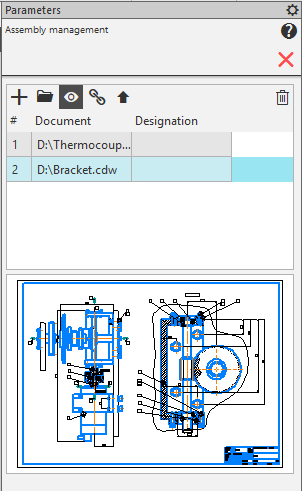
Assembly Management
6.By default, the Get Properties from Document button  is pressed. This means that the transfer of the values of the Designation and Name properties from the first attached document to the title block of the BOM is enabled.
•To disable the data transfer, de–press the Get Properties from Document button.
•To change the document from which data is transferred,place the required document in the first position of the list using the Move Document Up  and Move Document Down
  buttons.
|
An associative drawing connected to a BOM transfers the designation and name from the assembly that is projected into it. That is, if the function of getting the designation and name from the assembly is disabled in the drawing, and other values of these properties are entered, then the BOM created from this drawing will use the designation and name from the assembly, not from the drawing. |

7.Advanced options:
•you can open any attached document; to do this, select it in the list and click Edit in Window button  ,
,
•you can enable/disable display of contents of the attached documents on the thumbnail; to do this, press/de–press the Enable Viewing of Documents button  .
.
8.When you complete attaching the document to the BOM and configuring the attachment, click Finish  button in the Parameter Panel header.
|
If you want to view the title block of the BOM, activate the detailing display. |

|
By default, information about solids contained in the assembly is not included in the BOM. If this information needs to be reflected in the BOM, change settings for properties of solidsby enabling the Include into BOM option for them. |
Once a document is attached to the BOM, it will be automatically added to the list of BOMs connected to this document.
Detaching the Document from BOM
1.Run the Assembly Management command .
Assembly controls appear on the Parameter Panel, as shown on the figure above.
2.If several documents are attached to the BOM, select the one that should be detached.
3.click Delete button  .
.
Items belonging to the detached document will disappear from the BOM table.
4.After you complete detaching the document from the BOM, click Finish button in the Parameter Panel header.
The designation and name in the title block of the BOM may change as a result of detaching the document from it only if the detached document was the first in the list, and the Get Properties from Document button was pressed. In other cases, after detaching the document the title block of the BOM remains unchanged.
