|
Managing documents linked to the current model/drawing |
Scroll |
When working with an assembly or a part, you can create and edit lists of drawings and BOMs linked to it. When working with a drawing, you can generate a list of BOMs linked to it.
These lists help you quickly open a BOM or a drawing linked to the current document and avoid searching for the required file on the disk. Besides that, sketches and BOMs linked to a model are automatically connected to the external BOM item of this model, as well as displayed in the list of documents attached to the model, on the Product BOM panel.
Documents are automatically added in lists in the following cases:
•a BOM created using the Create BOM by documentcommand, as well as a BOM created in the usual manner, to which a document was then manually connected, will be included in the list of BOMs linked to this document,
•a model drawing created using the Create a drawing or Creating a drawing from a templatecommands, is included in the list of drawings linked to this model.
|
If a drawing was created in a usual way and then associative views of the model were added to it, such a drawing is not included in the list of drawings linked to the model. If required, you may include it in this list manually. |

To manage BOMs linked to the current assembly or drawing, use the Manage linked BOMs  command.

To manage drawings linked to the current assembly or part, use the Linked drawings management  command.
The listed commands are available if the current document is saved to a file on the disk.
After invoking the command, the Control linked BOMs or Linked drawings management process is launched, respectively. The Parameters Toolbar displays controls for drawings or BOMs linked to the current document.
Under the controls there is a table of drawings or BOMs linked to the document.
|
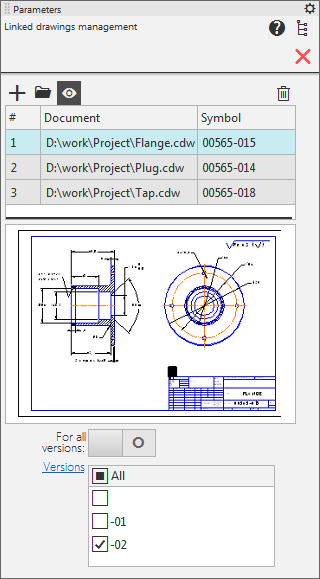
Linked drawings management process
While the command is working, the following actions are available.
•Adding a drawing/BOM to the list.
To do this, click Add Document  . In the file selection dialog that appears, select the document file to add to the list. After that a new row containing data from the added document will appear in the table.
•Open any of the drawings/BOMs linked to the document.
To do this, select the required document row in the table and click Edit in the window  . The selected document will be opened in a separate tab.
•Enable/disable the display of thumbnails related to the drawing/BOMs document.
To do this, depress or press the Enable viewing of documents  button.
•Removal of the drawing/BOM from the list of documents linked to the item.
To do this, select the table row with the document which you want to delete. Then click Delete  . The row with deleted document will disappear from the table.
•On linking the drawing with the model, having versions, selection of model versions to which the drawing will be linked,
is performed using the All versions toggle. When it is in the 0 position (disabled), a list of Variations is available, and you can select the versions from this list that need to be associated with the drawing. To link the drawing to each model version, set the toggle switch All versions to position I (on).
By default, if the current version is the primary version of the model is in place, then the drawing is associated with each version; otherwise, it is linked only to one version, which is current at the time of issuing the Linked Drawings Management command.
To complete the command, click Finish  in the heading of the Parameter panel.
|
Note that including a document into a list does not create an associative link between this document and the current document, and excluding it from the list does not delete the link. For example, if you add a drawing comprising a scheme to the list of drawings linked to the current assembly, this will not create associative views of the assembly in this drawing; and if you delete a BOM to which an assembly is connected from the list of BOMs linked with this assembly, the assembly will not be disconnected from the BOM. |
