|
Arrow of direction of view |
Scroll |
To create an arrow showing the direction of view, use the View Arrow  command.

Step-by-step instructions
1.Indicate the starting point (edge) of the arrow.
After indication of this point, a designation phantom will appear in the graphic area.
2.Generate a caption of designation.
3.If necessary, you can set the direction of the view arrow. To that end, indicate the required straight-line object in the graphic area: a segment, an auxiliary straight line, a centerline, a cut line, or a view arrow. On aiming the cursor at the object, the object will be highlighted, and the cursor will take the shape of square "trap".
The name of the selected object will appear in the Object field on the Parameter Panel. Depending on the direction of cursor movement, the phantom of arrow will take a position which is parallel or perpendicular to the selected object.
|
The size of the cursor’s trap can be changed in the cursor settings dialog. |

4.Select the type of arrow using the Arrow dropdown list.
|
The list of arrows which are available for selection, as well as the sequence of arrows in the list is determined by the setup of filter made in the Symbols for mechanical engineering – View Arrow – Arrow filter of the dialog for setting up the current document. |

5.Indicate the final point of arrow. After indication of this point, creation of a view arrow will end automatically.
|
To precisely set the position of the arrow, you can use snaps and geometrical calculator. |
|
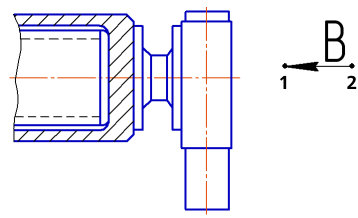
Labeling an view direction arrow
Once the view arrow is created, the command to create a new view. After execution of this command, in the drawing there will be appear a view whose designation will be associatively linked to the created arrow.
|
You can give up creation of a new view by pressing the Interrupt commandbutton. However it is not recommended to do that, since manual creation of a view and establishing a link between its designation and designation of the arrow will take extra time. Besides, placement of the view along the arrow in a separate view allows for rapidly changing the scale of image and makes the detailing of drawing more convenient. |
When labeling a view arrow, the hyperlink can be automatically created, linking the designation to the newly created view.
