|
Dialog for selecting a partition and object type |
Scroll |

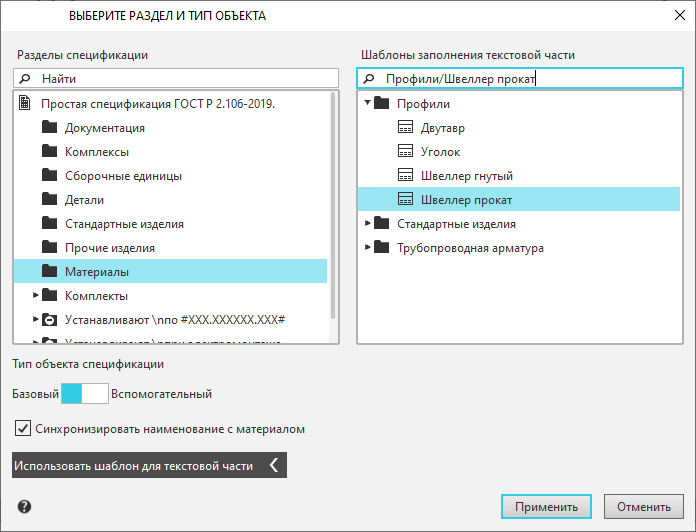
Allows you to select the section (and subsection) that will be created in the document or become the value of the Specification section property of the object. When creating a section, it is also required to specify the type of the new item in it, since the presence of empty sections in a BOM in KOMPAS-3D is not allowed.
Description of Controls
Name |
Description |
|
BOM Sections |
Select a section from the list of BOMs and, if necessary, a subsection. There is a section/subsection search field above the list. Enter the required characters, and then select the desired row from the list of search results that appears. |
|
BOM item type: Base / Auxiliary |
The toggle switch is present in the dialog if it is called for creating a BOM section. Specify the type of object to be created in the new section. |
|
The option is available in the dialog when creating a BOM object associated with an object that can have the Material property (for example, when creating external BOM item or constituent part with no visual representation). Changing the status of an option is possible if the section Materials is selected. Enable the option Synchronize name with material to text in cell Name the BOM item was synchronized with the value of the property available to the object Material. When the material of an object is changed, its name will automatically change. |
||
Use template for text part |
Click this link to select template for the text part of the BOM item. In the dialog, an additional area with the list of templates will appear. The list will be displayed if a section in which compound sorting is performed is selected (for example, the Stock products section or Materials section); otherwise, there will be no template list. The search field is located above the template list. Enter the desired characters in it, and then select the required row from the appearing list of search results. To close the template selection area, click the link Use template for text part again. If a template is not selected, the text part of the object created in the section with composite sorting can be entered into the BOM table cell using the keyboard. The entered text will be automatically converted into write, i.e. divided into fields and sorted by these fields. For more details on Template text as a line... The reference Use template for text part is missing in the dialog if it is invoked to set/change the property BOM section of the object. |
|
Apply |
Click this button to confirm your choice and exit the dialog. |
|
Cancel |
Click this button to exit the dialog without creating a BOM object or setting/changing the property of the BOM section object. |
