|
Dialog for setting up parameters of writing to EMF file (multi-sheet drawing) |
Scroll |
This dialog appears on the screen if, when saving a multisheet document, EMF.
The dialog allows you to configure the parameters of writing to a file of the selected format.

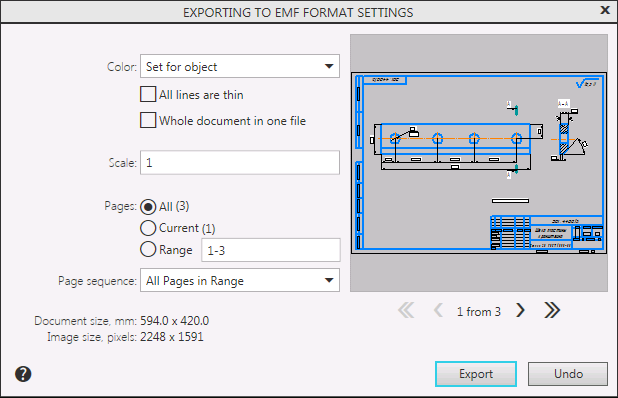
Description of Controls
The element |
Description |
|
Color |
A list from which you can select the color of the image. Advanced Options... |
|
All lines are thin |
This option allows to save all lines with the thickness set for printing thin lines in the dialog for setting up system lines. The default the value (thickness on paper) is 0.18 mm. If this option is disabled, the lines are recorded with individual thicknesses for printing. Line thickness on paper is a line style option. For system styles, it is set in the system lines settings dialog, and for user styles when setting them. The line style also contains the “thickness on screen” parameter. Its value does not affect the export result. The state of the option All lines Are Thin does not affect the thickness of the lines of the font. |
|
The entire document in one file |
For raster formats, excluding TIFF, the option allows you to save all drawing sheets in one file. If the option is disabled, each sheet is saved to a separate file. File names for the saved sheets will be formed as follows. Additional elements corresponding to the sheet numbers will automatically be added to the name specified when the document is saved. When saving a document to the TIFF format, the option allows you to save all the sheets of the document on one page of the file. If the option is disabled, the result of the document saving will depend on the status of the option Multipage TIFF. If this option is enabled, the document will be saved to one file. Sheets of the document are saved on separate pages of the file. If option Multipage TIFF off, then each sheet is written to a separate file in the same way as other raster formats. |
|
Scale |
The field to set the image scale. |
|
Resolution, dots per inch |
The field in which you can enter or select the image resolution. |
|
|
Since the size of a raster file is proportional to the resolution, high resolution is recommended to use only for writing documents that contain fine details and boundaries of substantial curvature – that will help reproduce them with minimum losses. Having written a file, view it in an appropriate bitmap editor. If you are not satisfied with the image quality, increase the resolution and write the file again. |
|
Pages |
The group of controls that is used to select pages for writing. |
|
All |
When enabled, this option means that all pages of the document will be written. |
|
Current |
When enabled, this option means that only the current page of the document will be written. |
|
Range |
When enabled, this option means that the pages of the range specified in the field will be written. You can enter numbers and/or ranges of page numbers in the field, e.g. "1, 3-5". |
|
Page Sequence |
This list is used to specify which pages of the range you want to write: all, only even, or only odd. |
|
Document size, mm |
Page image dimensions in mm. |
|
Image size, pixels |
Page image dimensions in points. This value depends on the specified scale and resolution. |
|
Preview Window |
The window is used to display the page selected for writing. |

When you have finished setting up, click the Export button to start recording. To cancel saving, press the Cancel button.
|
Writing to raster formats is subject to setting print filters. For example, the created drawing file will contain only those objects of the KOMPAS document for which printing was enabled. |
|
Since the size of the file in the EMF format is pre-estimated in points, a message may appear about the impossibility of writing a raster file. Details... For the export to be possible, the image must be zoomed out. |
