|
Constructing ellipses |
Scroll |
In KOMPAS-3D, you can build:
•Ellipse by center and two points,
•Ellipse by Diagonal of Rectangle,
•Ellipse by Centerpoint and Vertex of Bounding Rectangle,
•Ellipse by Centerpoint, Midpoint of Side and Vertex of Parallelogram,
•Ellipse by 3 Parallelogram vertices,
•Ellipse by Centerpoint and 3 Points,
You can use Snaps and geometrical calculator.
|
Commands for constructing ellipses are grouped together. While executing a group command, you can switch to execution of another one using buttons of the Parameter Toolbar header. You can also transfer any parameters you’ve specified between the commands of a group. More information about parameter propagation... |

Ellipse by center and two points
An ellipse with a given center and end points of two semi-axes is constructed by the Ellipse  command.

Step-by-step instructions
1.Set the center of the ellipse.
2.Set the end point of the first semi-axis of the ellipse in one of the following ways:
•specify a point with the mouse or enter its coordinates in the corresponding fields of the Parameter Panel,
•set the length and slope angle of the axis in the corresponding fields of the Parameter Panel (the angle of inclination is measured from the abscissa axis of the current coordinate system).
3.Specify the end point of the second semi-axis of the ellipse. You can do this in two ways:
•specify a point with the mouse or enter its coordinates in the corresponding fields of the Parameter Panel,
•set the length in the field Minor Semi-Axis Length in the Parameter Panel.
The ellipse is automatically created after setting the end point of the minor semi-axis.
4.To complete operation of the command, click Finish  .
.
|
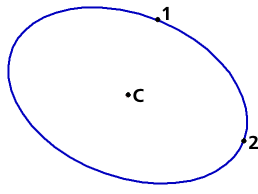
Ellipse on the center and the sizes of semiaxes
Additional features when building...
Ellipse by Diagonal of Rectangle
An ellipse inscribed in a rectangle with the specified diagonal is built using the Ellipse by Diagonal of Rectangle  command.
Step-by-step instructions
1.Specify the starting point of the diagonal of the rectangle described around the ellipse being created.
2.If you want to position the ellipse at an angle, enter the value of the angle of inclination of the first semi-axis of the ellipse in the corresponding field of the Parameter Panel. The angle is measured from the abscissa axis of the current coordinate system.
3.Set the end point of the diagonal of the rectangle described. The lengths of the semi-axes of the ellipse are determined automatically.
After setting the end point, the diagonal ellipse axis is automatically created.
4.To complete operation of the command, click Finish .
|
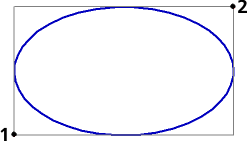
Ellipse on a diagonal of a dimensional rectangle
Additional features when building...
Ellipse by Centerpoint and Vertex of Bounding Rectangle
An ellipse inscribed in a rectangle with the specified center and vertex is built using the Ellipse by Centerpoint and Vertex of Bounding Rectangle  .
.
Step-by-step instructions
1.Set the center of the rectangle described around the ellipse being created.
2.If you want to position the ellipse at an angle, enter the value of the angle of inclination of the first semi-axis of the ellipse in the corresponding field of the Parameter Panel. The angle is measured from the abscissa axis of the current coordinate system.
3.Set the vertex of the described rectangle. The lengths of the semi-axes of the ellipse are determined automatically.
The ellipse is automatically created after specifying the vertex of the rectangle.
4.To complete operation of the command, click Complete .
|
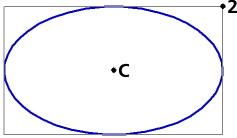
Ellipse by Centerpoint and Vertex of Bounding Rectangle
Additional features when building...
Ellipse by Centerpoint, Midpoint of Side and Vertex of Parallelogram
An ellipse inscribed in a parallelogram with the specified center, midpoint of side and vertex is built using the Ellipse by Centerpoint, Midpoint of Side and Vertex of Parallelogram  command.
Step-by-step instructions
1.Specify the center of the parallelogram described around the ellipse being created.
2.Set the middle of one side of the parallelogram described.
3.Set the vertex of the parallelogram. The lengths of the semi-axes of the ellipse and the slope angle of its first semi-axis to the abscissa axis of the current coordinate system are automatically determined.
After specifying the vertex of the parallelogram, an ellipse is automatically created.
4.To complete operation of the command, click Complete .
|
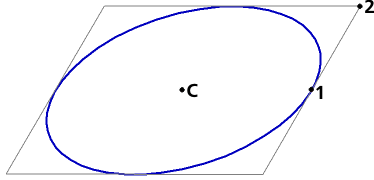
Ellipse by Centerpoint, Midpoint of Side and Vertex of Parallelogram
Additional features when building...
Ellipse by 3 Parallelogram Vertices
An ellipse inscribed in a parallelogram with three specified vertices is built using the Ellipse by 3 Parallelogram Vertices  command.
Step-by-step instructions
1.Specify the three parallelogram vertices described around the ellipse being created. The lengths of the semi-axes of the ellipse and the slope angle of its first semi-axis to the abscissa axis of the current coordinate system are automatically determined.
The ellipse is automatically created after specifying the third vertex of the parallelogram.
2.To complete operation of the command, click Finish .
|
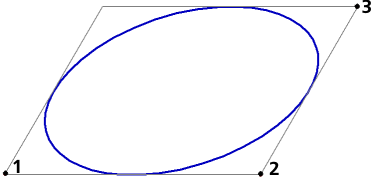
Ellipse on three peaks of the Parallelogram Vertices
Additional features when building...
Ellipse by Centerpoint and 3 Points
An ellipse with the specified center and passing through three specified points is built using the Ellipse by center and three points  command.
Step-by-step instructions
1.Set the center of the ellipse and the three points through which it must pass.
An ellipse will be automatically created.
2.To complete operation of the command, click the Finish button .
|
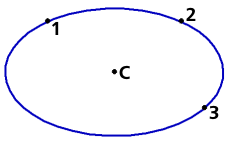
Ellipse by Centerpoint and 3 Points
Additional features when building...
An ellipse tangent to two specified curves is built using the Ellipse tangent to 2 curves  command.
Step-by-step instructions
1.Specify two curves that the ellipse must touch. Curve names appear in the field Objects in the Parameter Panel, and the phantom of the created ellipse is in the graphic area of the document. The ellipse will touch the selected curves at the points of the indication.
2.Specify the point through which the ellipse should pass. It will be created automatically.
3.To complete operation of the command, click the Finish .
|
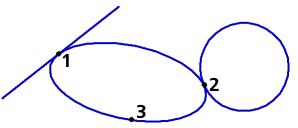
Ellipse tangential to a segment and a circle
