|
Working with documents |
Scroll |
An special area on the Product BOM panel is designed for work with documents attached to the product and its constituent parts. Its display is enabled by Documents  button.
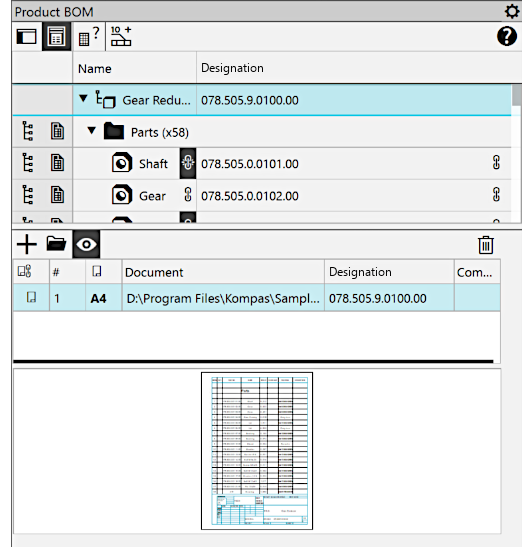
List of documents attached to product
The area for working with documents contains a list of documents attached to the specified object (a product or constituent part).
•The list of documents attached to the constituent part, which is represented by a component, contains at least one document – the model of this component. This document is automatically connected to the component part and cannot be deleted. This list also contains documents that were linked with component and/or connected to it in its source-file.
•By default, the list of documents linked to other constituent parts, as well as to the entire item , is empty.
|
The documents attached to a constituent part, are also attached to the corresponding BOM item, and vice versa. The documents attached to a product, are also attached to the external BOM item of the model, and vice versa. |

|
Work with documents is not provided for constituent parts inserted from the Stock Products Reference. |
The following buttons are located above the document list:
 Add Document — adds a document to the list.
 Edit in window — opens the document selected in the list in a separate tab in the KOMPAS-3D window.
 Enable viewing of documents — enables/disables preview of the selected document in the list. The viewing area is below the list.
 Get format from a document — pressing the button means that the format of the document selected in the list will be transferred to the customizable item and subsequently displayed in the BOM (in the row corresponding to the customizable item). This button is displayed on the toolbar if a document selected in the list has a Format property value that is not empty.
If configuration is performed for a product as a whole, format is displayed in the BOM for the next level product, to which the current product is added as a constituent. If configuration is performed for a constituent of a product, format is displayed in the BOM for the current product.
In certain cases, the transfer of the format from the document may be included automatically when this document is linked to the product/assembly part. Details...
 Get properties from document (the button appears on the panel only when configured) Constituent part with no visual representationPressing the button means that the values of the properties Designation, Name, Material, and Mass from the highlighted item in the document list will be transferred to the customizable constituent part.
After you click the button or , the content of the corresponding cell in the BOM table on the Composition Panel is replaced with the extracted value from the document property, and the document is marked in the column Property/format source with an icon.
 — if the property Format is transferred from the document,
 — if the properties Designation, Name, Material, Mass are transferred from the document,
 — if all the properties listed above are transferred from the document.
As long as the button remains pressed, the link between the product/constituent and the document is maintained, i.e. all changes of property values are transferred from the document to the product or constituent. You can disable the attachment by releasing the button. The icon for the document in the column Property/Format Source will disappear. Current values of the corresponding properties in the cell of the Product Components Toolbar are not changed.
If you edit property values in the cells on the Item Composition Panel manually, the buttons are released automatically: the Get Properties from Document button when editing designation or name, and the Get format from a document button when editing the designation format.
 Delete – deletes the selected document from the list. The document file is left on the disk intact. When you remove a document, from which property values or format were transferred to a product or a constituent, the current values are preserved but the properties lose the link with the document.
You can delete only those documents that were manually attached to a product or its constituents. Deletion of a document attached to a component via its source file (as opposed to an assembly file) is performed in the source file.
|
The commands called by the buttons listed above are also available in the context menu of the document selected in the list. |

Procedure for automatic inclusion of format transferring from connected document
When a document is attached to a product or its constituent part, the format transfer from this document may automatically be included under certain conditions. They are detailed below.
•If a product/constituent part has no connected documents (or there are connected documents, but none transfer their format to the product/assembly component), then for the attached document — provided it has a non-empty property Format — the format transfer and change tracking are unconditionally enabled, i.e., the Get format from a document button is pressed and remains pressed.
The same occurs if the value of the Format property for an item/component part was entered manually.
•If the attached documents exist and any of them already transfer their format to the product/constituent, then:
•For all cases, except when the transferring document format is attached in the source-file of the assembly part:
•If the current format is transferred from the BOM (*.spw), then
Settings do not change when a new document is connected;
•If the current format is transferred from a drawing (*.cdw), then
The format transfer from the connected document and the tracking of its changes is enabled provided that the connected document is a BOM.
•If the current format is transferred from another document, then
Transferring the format from the connected document and tracking its changes is enabled if the connected document is a drawing or a BOM.
•In the case when the transmitting document format is connected in the source-file of a component part, the format setting for this component part does not change when a new document is connected to it. Besides, in this case, Get format from a document button is absent on the panel. If it is required that the component should receive the format not from the source but from the attached document, then do the following:
1.Delete the current value of the property Format from the corresponding cell in the table of the Product BOM panel.
As a result, the format link for this component will be removed (the icon  in the cell Format will change to
  ), and Get format from a document button will become available for the added documents.
2.Select the required document in the list of objects linked to the object and press the Get format from a document button .
3.If you need to return the format from the source, click the icon in the Format cell.
Notes on working with documents in a group of identical constituents
A group of identical constituent is displayed on the Product BOM panel as one group row. Details...
When working with documents in a group row, keep in mind the following:
•The document list of the group displays every document that is attached to at least one of the constituent parts of the group.
•Adding a new document to the group document list means linking it to each constituent part of the group.
•Deleting a document from the group document list means detaching it from each constituent part of the group.
•From the buttons Add document , Get properties from the document , Get format from a document and Delete for a group of composite parts, only those that are available for all composite parts of the group are displayed. For example, if a group contains a constituent from a a subassembly represented in the assembly by its constituent parts, as a result, the Add document button will be missing for this group, as it is impossible to attach a document to a consistuent part from the sub-assembly.
