|
Batch setting of properties |
Scroll |
If there are several same constituent parts, they are grouped together on the Product Composition panel. By default, the group is shown in collapsed form, i.e. as a single (group) string. To see the contents of the group, click on the sign  at the beginning of the group row — all rows of the group will be displayed in the table.
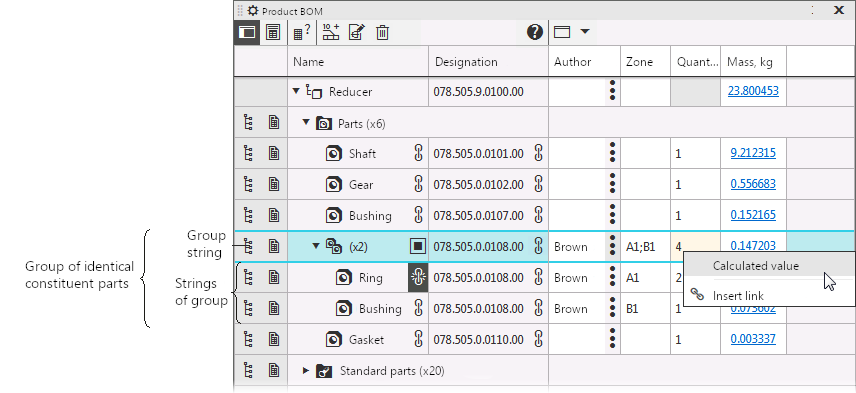
A group of identical constituent parts on the Product composition panel.
Cancelling manual change of the Quantity property
The content of a group cell (that is, cells in a group string) is determined by the rule of grouping, to which the property displayed in this cell is subordinated. The result of editing a property in a group cell also depends on the rule of grouping. There are three grouping rules: Sum, Enumeration of unique values, Coincidence. They are detailed below.
Sum
The group cell displays the sum of the values in the cells of the group.
Properties governed by the rule Sum: Mass, Quantity.
•Notes on working with the property Mass:
•Clicking in the group cell of the property Mass brings up the dialog. CMP. If the calculation method By mass is selected and a mass value is entered, then this value will be transferred to all cells of the group.
Thus, the group cell will display not the mass value specified in the dialog, but this value multiplied by the number of components in the group.
•Notes on working with the property Quantity:
•The values specified in the cells of the group are automatically summed. The group cell displays the sum. Double-click a cell to edit its value.
•If the value in the group cell is entered by the user, then automatic aggregation in it becomes disabled, i.e., the manually specified number is constantly displayed in the cell. Such a cell has a yellow background.
•To restore automatic summation of quantities in the group cell, use the Calculated Value command in the context menu of this cell. After that the white background is restored for the cell, and a manually entered value id replaced by the sum of group cell values. Important: automatic summing is not restored if you manually enter the value matching the sum of individual quantities.
•If the group contains constituent parts, Excluded from the product  or Excluded from the BOM of this style
  , the specified quantities for them are not considered in automatic summing.
|
In the Materials section, the quantity is usually accompanied by a unit of measure designation. These designations should be entered in the column Note, not Quantity, because if there are letters in at least one cell of the group, automatic summation in the group cell is not performed. |

All values that occur at least once in the group cells will be listed in a group cell separated by semicolons.
After double-clicking in a group cell, its contents will no longer be displayed. The value entered in the group cell will be transferred to all cells of the group.
Properties governed by the rule List of unique values: Sizes of document sheets, Zone, Note.
Coincidence
The group cell will display a value if it is the same for all group members. Otherwise, the group cell is empty or contains the text "Set differently".
Double-click a group cell to enter a value. The value entered in the group cell will be transferred to all cells of the group.
Properties conforming to the rule Coincidence: all properties not conforming to the rules Sum and Enumeration of unique values (Name, Position, Cut in sections, etc.).
|
The rule Coincidence also applies to all properties created by user, — regardless of the data type within them. |
See Also
Notes on working with documents in a group of identical constituents
Controls of the Product composition panel cells
Configuring the properties table on the Product composition panel
