|
Setting the properties of the product and its constituent parts |
Scroll |
General procedure for setting properties
The values of the properties of the product are located in the cells of the first row of the table on the Product composition panel, while the values of the properties of the constituent parts of the product are located in the cells of the remaining rows. In most cells, values are entered using the keyboard. They become available for input after double-clicking.
Property cells Developed, Checked, Approved, Technical control, Quality control, Signed and Letter have an icon on the right side  . After clicking on it, a user menu to select a row, the text of which will become the property value. Arbitrary text entry in the listed cells is also available.
|
The icon |

An additional way to assign a property value is to create a reference. To create a link, select the cell of the desired property with a single mouse click, invoke the Insert Link  command from the context menu, and configure the link parameters in the appearing window. the dialog. Some properties cannot obtain values by reference — for them, the Insert link command is unavailable.
More details on the link in a property value...
Note that certain properties cannot be edited on the Product Composition Panel — the corresponding cells have a gray background (see illustration). For example, the value of the property Accuracy Class cannot be set in the Product Composition Panel for either the product itself or its constituent parts (the selection of the accuracy class is done in general tolerances setup dialogThe property Quantity can be assigned only to assemblies, but not to the product, while the property Author, on the contrary, can be assigned only to the product, but not to assemblies.
The figure shows the editing of the Designation property for the product. The panel for entering Base Part Designation, Version Number, and Document Code appears after double-clicking in the cell of the Designation column.
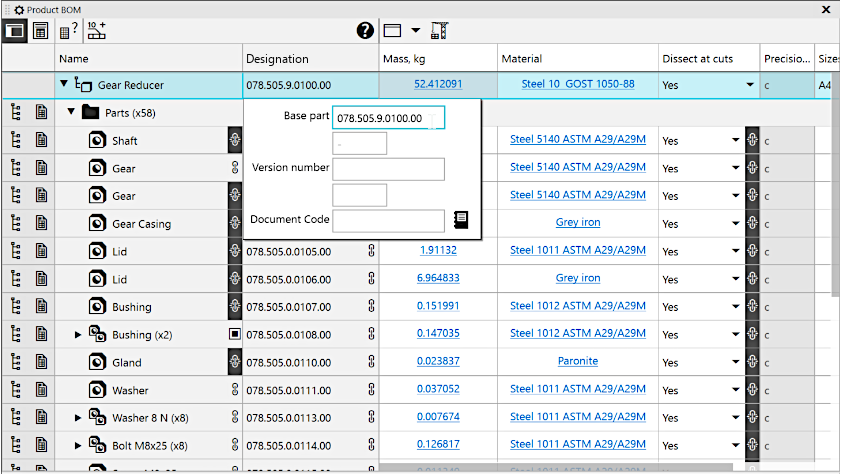
Editing the product designation on the Product composition panel
The procedure and notes on entering individual property values
The procedure and the notes on entering the values of individual properties on the Product composition panel are shown in the table. Values not listed in the table of properties are set in the usual way — as described above.
The procedure and notes on configuring the property values on the Product composition toolbar
Property |
Setting a property value |
|
Name |
The value of this property can be entered as plain text or a link (see above). If the value should include plain text and a link simultaneously or several links, use special Add Text dialog. To access it, select a cell with a single mouse click, call up the context menu, and choose the Additional data command. |
|
|
Creating multiple references in the name might be required when entering information about a part without a drawing: its name is usually supplemented with material designation and dimensions necessary for manufacturing (for example, length). These data can be included in the item name as references to the corresponding properties of the same item. A special text input dialog can also be used to include such insertions in the title as fractions, indexes, special characters, etc. |
|
|
If the name created using the text input dialog includes a link, then the entire name text is displayed in blue with underlining. After clicking on it, this dialog appears again. The exception is a name consisting of a single link: clicking it opens the dialog. Creation and editing of the link. |
|
Designation |
After double-clicking in a property cell, the toolbar for entering the designation displays on the screen. Using this panel you can enter the base part of the designation and the version number, and: •for a product — document code, •for a constituent part — additional number. After completing the entry, press the <Enter>. For more details on working with the Designation Task Panel... |
|
The cell becomes available for input after double-clicking it. The default value of the property Quantity for the constituent part is 1, for group strings — the sum of the numbers in the corresponding cells of the group. If the quantity value for a group row was changed, the cell background becomes yellow and automatic aggregation becomes disabled. To restore the summation, call the Calculated value command from the cell context menu. Changing values for constituent's quantities does not change cell background. Setting quantity for product and for assemblies is not supported, Excluded from the current style BOM or from the product composition. |
||
Material, Density, Mass |
After clicking in any of these cells, a the dialog, in which you can set the material and its density, choose the method of mass calculation, and also set the hatch style for display on sections. If the mass value for a product or a constituent is not up-to-date, the corresponding cell has pink background. To update mass value, click Recalculate CMP |
|
Reference Number |
Can be entered manually or determined automatically. To automatically determine, click Set Ref.Nos. •The model is an assembly, •display of column Position in the property table enabled, •BOMs connected to the assembly, none. |
|
After clicking this cell, a Select BOM Section dialog. |
||
Majority Surface Finish Symbol |
After clicking in this cell, a menu appears for selecting a method of surface processing. |
|
Parameter for Majority Surface Finish |
This cell has the |
|
Dissect at cuts |
After clicking in this cell a menu appears with the commands to enable/disable dissecting at cuts for a product or a component in associative drawings. |


See Also
Controls of the Product composition panel cells
Configuring the properties table on the Product composition panel
