|
CMP dialog |
Scroll |
Allows you to specify the values of system properties Mass, Material, Density for the product or its constituent part, and also to recalculate the CMP of the product/constituent part. In addition, in the dialog, you can set hatch parameters for displaying the product/constituent at the cuts in associative drawings.
The dialog uses length and mass units that were set during configuring the current model. If you want to select other units, close the CMP dialog, change the setting, then open the dialog again.
|
If the transfer of A constituent part does not have a visual representation (i.e. being just a set of properties and not associated with a component/solid), then in the BOM dialog for it, only the following options are available: •specifying density (manual input or getting from the reference), •manual input of the mass value (the specified mass in total product mass is not taken into account), •selection of material from the list or from the reference, •deletion of material designation. |


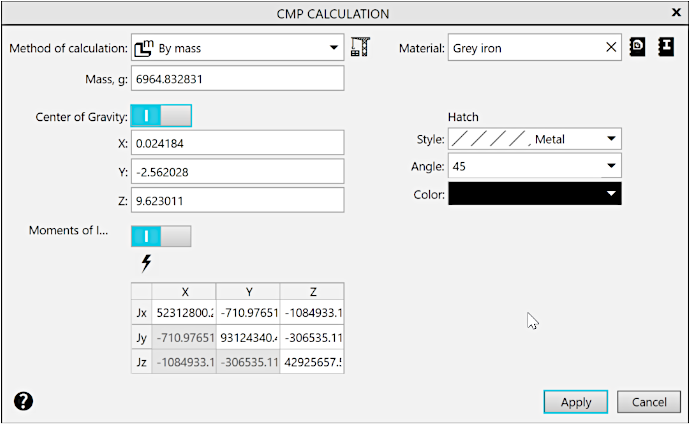
The dialog controls are shown in the table.
Description of Controls
The element |
Description |
|
Method of calculation |
The list for selecting the method of calculation of the center of mass properties of the product or its constituent. To the right of the list is the Recalculate CMP The button is used to re-calculate the center of mass properties of the product or its constituent after changing the material, density or mass. If the button is available, it means that information about the product/constituent CMP is not relevant. After you press it, the recalculation occurs, the information is updated, and the button becomes available. |
|
|
By source data |
This calculation method is not available when setting CMP of the product. When setting CMP of the constituent, selecting this calculation method means: •For a component — the mass value and the value of center of gravity coordinates are taken from the file of this component (in turn, they can either be calculated or entered manually in the file). •For a solid — the mass value is calculated from the actual volume of the solid and the density set for the current model. The center of gravity of the solid is calculated from its shape, while the distribution of mass in the solid is considered homogeneous. When selecting the calculation method By Source Data, the remaining dialog controls are not available. |
|
By density |
Selection of this method means that you must specify the material density in order to calculate CMP. You can specify the density value arbitrarily or get it from the reference. It depends on the status of the Value from reference By default, this button is selected. In this case, the Density field is unavailable — the value is transferred to it from the density reference file or the Materials and Processes List application (depending on where the material was chosen from). To enter the density value manually, depress the Value from reference button. The field Density will become available. •If you configure CMP of the body, the specified density is used to calculate the mass of that solid only. •If you configure CMP for the whole product or subassembly, the specified density is used to calculate the masses of all solids that are built directly in the product/subassembly model and that do not have their own density or mass specified (i.e. the By Source Data option is chosen for them). If the model does not have such solids in it, the change in density will not affect its mass. |
|
By mass |
Selection of this method means that you must specify the material density in order to calculate CMP. The mass value is configured manually in the Mass, g field. •If you configure CMP for the whole product or subassembly, its mass value is a user-specified number. Masses of constituents of the product or subassembly (both specified and calculated) are ignored. The center of gravity and moments of inertia of the product/subassembly in this case are calculated using the current mass and positions of its components and solids. If necessary, the coordinates of the center of gravity and/or moments of inertia can be set manually. •If you configure CMP of the solid, the number you enter is considered its mass value (regardless of the solid material). The center of gravity of the solid is calculated from its shape, while the distribution of mass in the solid is considered homogeneous. |
|
By source copy data |
This calculation method is only available for a constituent that is an array instance and means that the instance CMP are the same as those of the source array object. |
|
By source execution |
This calculation method is available for a product or its component part, which is using the option, and means that the mass-inertia properties of model are considered to be the properties calculated for the source execution. |
Material |
Field containing material designation. The field is available if the Calculation Method selection list includes the By Density or By Mass options. If required, the material designation can be deleted by pressing the icon Manual field filling Material is not possible, therefore to return the designation it is necessary to select the material again (see further). |
|
|
Select material from list |
The button to select a material from the the density reference file, which is used by the KOMPAS-3D system by default. Pressing the button, it opens Dialog Material Density Selection. When you select the material using this button, hatch density and style are set automatically. |
|
Select material from reference |
The button to select a material from the Materials and Assortment Application. When you select the material using this button, density is set automatically. |
Hatch |
A group of fields for setting hatch that will be used for the section/cut of the product or its constituent in the associative drawing. |
|
Style |
The field of hatching style. Filled in automatically after material selection. In this field, you can select style from the list and libraries. |
|
Angle |
The field of hatch angle. The field allows you to select values from the list or enter them manually. |
|
Color |
The field of hatching color. The default color is set in the hatch style (for system styles it is black). This field allows change of color. |


 located above the table.


To complete the work in the dialog and save the changes, click the Apply button.
To exit the dialog without saving changes made, press the Cancel button.
