|
Working with a template list |
Scroll |
The template list is displayed on the Document by Template tab of the dialog for document creation or the Start page.
Template list in the dialog for document creation |
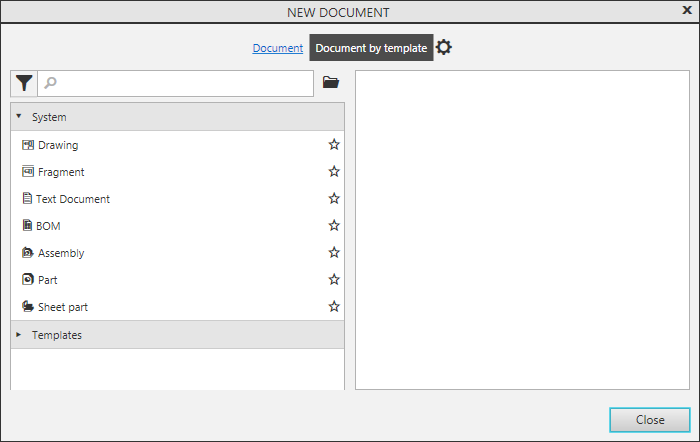
Document templates in the list are organized in sections. System section contains templates for new documents of all types (drawing, detail, etc.). When you select a template from this section, documents are created with exactly the same parameters as documents created using the icons on the Start page and in the New Document dialog, using commands from the starting menu activation button  , and Create Drawing, and Create BOM by document commands. If in the Document templates dialog, the template for the selected type of documents is set, the document is created with settings according to the template. If a template is not set, the document is created with default settings.
The last section in the list contains templates that are included in KOMPAS-3D. By default, they are stored in the \\Templates subfolder of the main system folder. The name of template section matches the folder name. You can change the path to this folder in the KOMPAS.ini file.. If a folder designated as a template folder cannot be located in the specified path or does not contain any templates, the corresponding section will not be displayed in the template list.
Custom sections with templates, if any, are placed between the first and the last sections.
The description of possible actions when working with the template list is provided below.
Context menu
You can call the context menu by right-clicking the name of any template. It includes the following commands:
•Create document from template — allows you to create a document by the selected template,
•Edit template\u00a0\u2014 allows you to open the template file in a new tab of KOMPAS-3D for editing,
•Open file folder — allows opening the folder containing the selected template in Windows Explorer,
•Copy the full file name allows placing the template file name along with its absolute path into the Windows clipboard.
In the context menu of the template from the System section, all commands are available if in the dialog. Document templates The path to the template for documents of the corresponding type is set. Otherwise, only the Create document from template command is available.
Adding and deleting sections with templates
You can add new sections to the templates list and remove them.
To add the section press the Open folder  above the list of templates. In the file selection dialog box that appears, specify a folder with templates and click OK. A new section with the same name as the selected folder will appear in the list.
A section may contain sub-sections, if an added folder contains any nested folders with templates. Nested sections are displayed inside a parent section, above the templates of this section.
If an added folder doesn't contain any templates, you won't be able to expand the corresponding section in the list.
If a folder with templates can't be located in the specified path, the row for the corresponding section is marked by pink color and the icon  .
.
To remove a section from the template list, click the icon  in the row with its name. You can't delete the section System and the section linked to the folder, configured as a template folder.
|
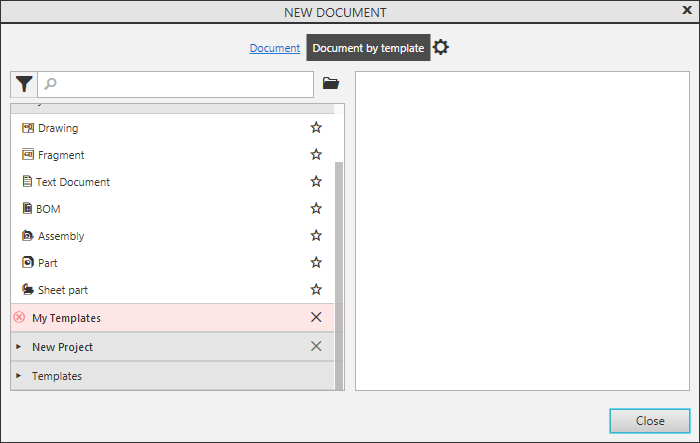
Template list with custom sections
For convenience you can mark the most used templates as "Favorite". Those templates are displayed at the beginning of the list, above all sections.
To do that, click the icon Add to favorites  in the row with its name to mark the template as a favorite. Template duplicate will appear in the top of the list.
Template duplicates are positioned at the top of the list in the order they were added to favorites. You can change the order of duplicates. To do this, move the cursor to the move marker  in the row of the desired duplicate, click the left mouse button, and, without releasing it, move the cursor to the desired row. When the line is highlighted, release the mouse button. While moving, the cursor takes the shape of a four-headed arrow
  , and next to the cursor, the icon and the name of the component being copied are displayed.
To remove a template from the top of the list, click the corresponding Remove from Favorites  .
.
The list allows to search templates by names. The search field for template names is located above the template list. All objects whose names contain the entered text are displayed in the list of search results. Select the template you need from the list.
|
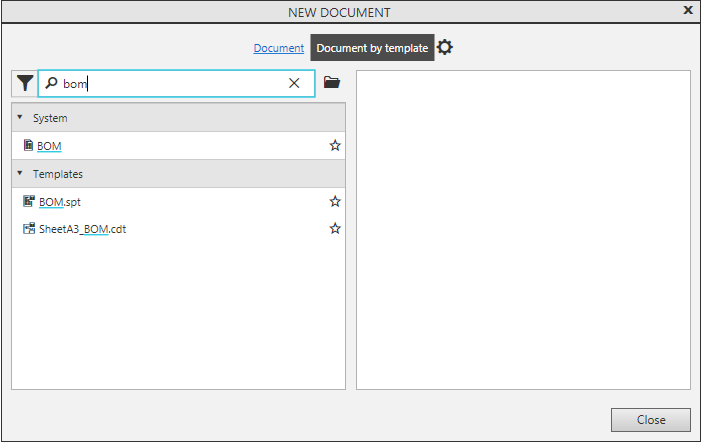
Search templates by names
Template Filters
You can display only document templates of the required type (or types) in the list. You can do it using the print filters.
To enable one or more filters, click the Filters button  to the left of the search field, and then \u00a0\u2014 click the button corresponding to the desired document type. A list in which only templates of documents of the selected types are displayed.
To disable filters, press the buttons corresponding to the document types, and then click Filters button.
|
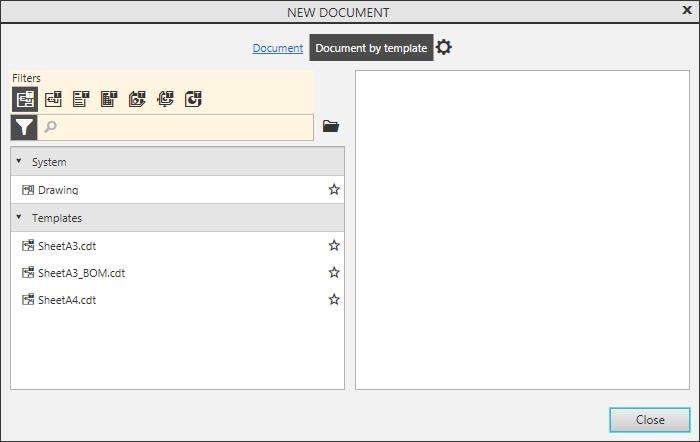
Searching for templates with the filter BOM
