|
Constraint view mode. Viewing and deleting constraints |
Scroll |
Constraints applied to objects are marked by special icons in the graphic area. Those icons are displayed on the screen in constraint display mode.
To enable the constraint display mode, the Show constraints  command is used. By default the constraint display is enabled for sketches, and disabled for graphic documents.

In the constraint display mode the graphic area displays additional icons, representing the presence of constraints, and additional elements (dashed lines, crosses, etc.) for visual representation of those constraints. A rectangular marquee around a dimension value designates a fixed dimension. A variable for a dimension is represented in braces under the dimension value (more details in the Notes on displaying dimensions with variables). The figure shows an example of a sketch in the constraint display mode.
|
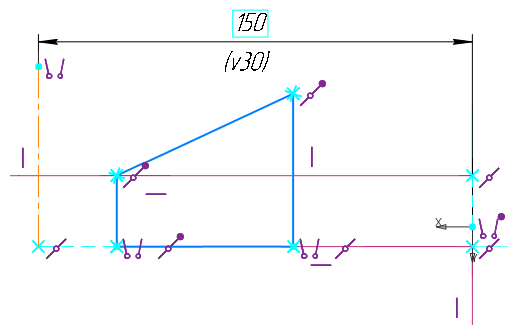
Sketch in the constraint display mode.
The full list of displayed constraints is provided in the section Constraints designation in the graphic area. If the constraint is ambiguous, then its icon is colored orange. More details on ambiguous constraints...
You can perform the following actions in the constraint display mode:
•View objects that have the selected constraint applied. Details...
•The process of viewing constraints for the selected object – double-click any of the constraint icons of the required object. The command for Object snaps, in which the object constraints will be displayed.
•To delete a constraint — select the icon of the constraint you want to delete and press the <Delete> key.
|
Constraints are displayed for all geometry object on an image and for some designations. You cannot disable display of constraints for a separate object. When you zoom out on image, icons and additional elements representing constraints (dashed lines, crosses, etc.) become hidden in order not to interfere with objects and work with them. In drawings, constraints are only displayed for objects in the current view. |

You can customize the color of additional elements, representing constraints (dashed lines, crosses, etc.). You can also enable or disable constant display of variables, fixed dimension boxes and fixed point icons. To do this, use the Dialog for setting up the displaying constraints and degrees of freedom.
To disable the constraints display mode, run the Display constraints command again.
|
In some cases displaying constraints for all objects is too cumbersome, but user still needs to see the constraints for an object being edited at the moment. To do this, click the Configuration dialog the option Display constraint icons for selected objects is enabled. It allows to view and delete constraints for the current object if the constraint display mode is disabled. To work with object constraints, you can also use the Object Constraints |


