|
Dialog of parameters of reading file in JT format into model KOMPAS-3D |
Scroll |
The dialog appears on the screen after calling the Open with Parameters command from the Open button menu when importing a model from a JT file. The dialog allows you to configure the import options.
The dialog box contains the Data and Properties tabs.
Set the file import parameters and click the Import button. The model import will start with the specified parameters.
If you want to cancel the import, close the dialog by clicking the Cancel button.

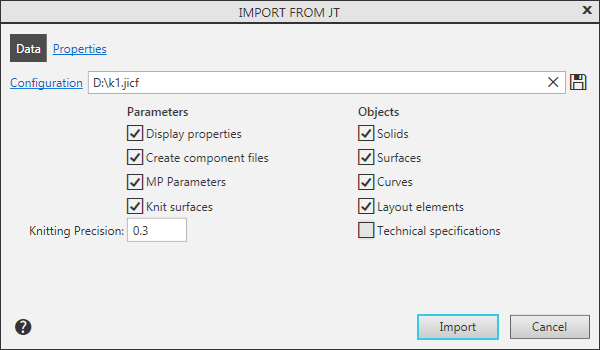
Description of the controls on the Data page
The element |
Description |
|
Configuration |
Click the link to load the configuration. Configuration name is displayed in the field to the right. Configuration is a special file with a list of import parameters. If a configuration is loaded, it is automatically applied to import of a current document, and also to other import procedures in the current KOMPAS-3D session. More details about import configuration... If you want to stop using the configuration, click the Default |
|
|
Save to file |
This button allows you to save the current settings to a configuration file. After clicking it, you will be prompted to enter a name for the configuration file in the save dialog. Configuration files imported from the JT format have the .jicf extension. The saved file is automatically selected as the active configuration—its full name appears in the Configuration field. |
Parameters Group |
||
Display properties |
This option is used to enable/disable the import of colors of model objects. |
|
Create component files |
The state of the option affects the process of creating components when importing an assembly model: •If the option is enabled, the components are written to separate files and are independent models, •If the option is disabled, the components are stored inside the assembly as local models. |
|
CMP Parameters |
This option allows you to enable/disable the import of CMP parameters such as density and mass. |
|
Knit surfaces |
This option is used to knit surfaces. If this setting is enabled, the system will try to merge the imported surfaces. As a result, you can get a larger surface or solid (if the source surface is closed). If this setting is disabled, the knitting won’t be applied, and the imported surfaces would be similar to the original ones. Please note that the Knit surfaces setting only affects surfaces and do not affect bodies. |
|
Knitting Precision |
Field to enter the value of the maximum distance between the edges of knitted surfaces. The range of valid values is 0–1000 mm. The field is available when the option is enabled Knit surfaces. |
|
Group Objects |
This group of options is used to manage the import of model objects. When this option is enabled, objects of the corresponding type are imported into the model. The group contains the following options: •Solids, •Surfaces, •Curves, •Layout elements — dimensions, designations, captions, and tables are imported, •Technical notes — text objects are imported. |
|


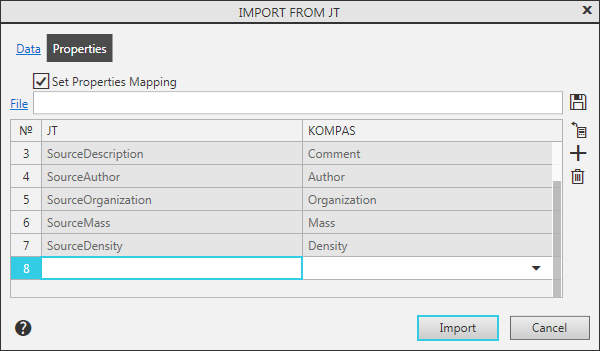
When importing JT file, the attributes recorded in them are read. Predefined atributesSourseID, SourseName, SourseDescription, SourseAuthor, SourseOrganization, SourseMass, and SourseDensity are converted into properties Designation, Name, Comment, Author, Organization, Mass, and Density, respectively, while the remaining attributes become user properties automatically created in the model. When necessary, you can configure the mapping of attributes and properties of KOMPAS-3D document.
Description of the controls on the Properties page
Element |
Description |
|
|
Set Properties Mapping |
The option allows to enable/disable the correspondence for the attributes of the imported file and the properties of the KOMPAS-3D document. When this option is enabled, a table of attributes and properties mapping is displayed on screen. The table controls are represented below. |
|
File |
This field allows you to link a file containing an existing mapping table. To do this, click on the field name. The full file name will appear in the field. The file containing the mapping table has the .xml extension. |
|
By Default |
Click this button to load the default attributes and properties mapping. |
Table of attributes and properties mapping |
In the table, the mapping of the attributes of the imported document and the properties of the KOMPAS-3D document is configured. The No. column contains ordinal numbers of mappings. In column JT, attributes are listed, and in column KOMPAS — properties. Pairs of predefined attributes and their corresponding properties are always present in the table. To the right of the table there are buttons that control its content. |
|
|
Save to file |
This button allows you to save the mapping table to a file. After saving the file, its full name will appear in the File field. |
|
Read from file |
This button displays in the table those attributes from an imported document, that are not pre-defined. If an imported document has such attributes, their names are added to the table when you press this button. Cells in the KOMPAS column for them are empty. Attribute cells are editable, and property cells contain a dropdown list, where you can specify a property of your choice. The line Settings... in the list allows you to select a property from the library. |
|
Add |
To add a new pair of attribute — property to the table, click this button. This action adds a new empty row to the table. Attribute cell allows to enter a name, and property cell contains a dropdown list, where you can specify a property of your choice. The line Settings... in the list allows you to select a property from the library. |
|
Delete |
This button allows you to delete a match row from the table. It is available when one of the added rows is selected in the table. Rows with predefined attributes cannot be deleted. |


See also
Configuring model and model object import settings
Features of importing and exporting of the property «BOM section»
