|
Dialog for specifying parameters for reading a proprietary format file into KOMPAS-3D model |
Scroll |
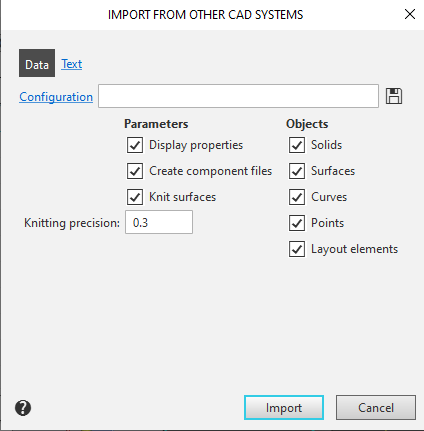
A dialog box appears on the screen after selecting the Open with parameters command from the Open button menu when importing a model from a file in one of the proprietary formats. It allows you to configure the import settings.
The dialog box contains the Data and Text tabs.
Set the file import parameters and click the Import button. The model will begin importing using the specified parameters.
If you want to cancel the import, close the dialog box by clicking the Cancel button.

Description of Controls
Element |
Description |
|
Configuration |
This field is used to load a configuration file containing the import settings. To select the desired configuration, click on the field name and specify the configuration file in the dialog box that opens. The full name of the selected file will appear in the field, and the settings in the dialog box will change to match those specified in the configuration file. The selected configuration applies to the current and all subsequent import operations for proprietary file formats. More about import configuration... If you want to stop using a configuration, click the Default |
|
|
Save to file |
This button allows you to save the current settings to a configuration file. After clicking it, you will be prompted to specify a name for the configuration file in the save dialog. Configuration files imported from a proprietary format have the .picf extension. The saved file is automatically selected as the active configuration—its full name appears in the Configuration field. |
Parameters Group |
||
Display properties |
This option allows you to enable or disable the import of model object colors. |
|
Create component files |
The status of this option affects the process of creating components when importing an assembly model: •If the option is enabled, components are saved to separate files and become standalone models; •if the option is disabled, the components are stored within the assembly as local models. |
|
Knit surfaces |
This option allows you to merge surfaces. If this option is enabled, the system attempts to merge the imported surfaces. As a result, you may end up with a surface of larger area or a solid (if the original surface is closed). If the option is disabled, no merging takes place, and the import results in surfaces identical to the original ones. Please note that the status of the Knit surfaces option affects only surfaces and does not affect solids. |
|
Knitting Precision |
A field for entering the maximum distance between the edges of the surfaces to be joined. The valid range is 0–1000 mm. This field is available when the Knit surfaces option is enabled. |
|
Group Objects |
This group of options is used to manage the import of model objects. When this option is enabled, objects of the corresponding type are imported into the model. The dialog contains the following options: •Solids, •Surfaces, •Curves, •Points, •Layout elements — dimensions, designations, and text objects are imported. |
|


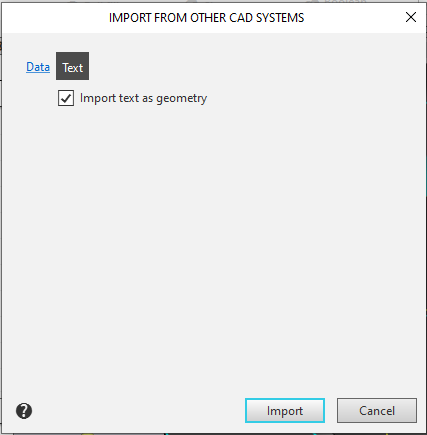
When importing models in proprietary formats, all text labels, dimensions, and designations are converted to Decorative Element objects without history. The import settings for text contained within decorative elements are configured on the Text page.
Description of Controls
Element |
Description |
|
Import text as geometry |
This option allows you to specify whether the transferred text will retain the properties of a text label or become part of the design element’s geometry without a history. •If this option is enabled, text objects become a set of lines. They cannot be edited. •If the option is disabled, text objects are imported with the settings specified in the source document. They retain their text properties and can be edited. |
|
Match texts to system ones |
This option allows you to enable or disable the application of the style specified in the part/assembly template to text objects. |
|
Set character correspondence |
This option allows you to establish a mapping between special characters (KOMPAS-3D) and the symbols included in the formatting elements of the imported document. When this option is enabled, a table becomes available for configuring character mappings, along with functions for reading from and writing to a file containing the configured table. |
|
File |
This field allows you to link a file containing an existing character mapping table. To do this, click on the field name and select the desired file in the dialog box that appears. The full file name will appear in the field. The file containing the character mapping table has the .acs extension. |
|
|
By default |
This button allows you to opt out of using the mapping table file. When you click the button, the file name is removed from the File field. Only the cells containing the special characters KOMPAS-3D remain in the dialog box table. |
Correlation table |
This table is designed to establish pairs of corresponding characters: special characters (KOMPAS-3D) and symbols in documents of the format from which the data is imported. The following are specified in the table columns: •No. — the sequential number of the special character KOMPAS-3D, •COMPAS — the special character KOMPAS-3D, •Source File — the character or sequence of characters used in documents of the imported format. KOMPAS-3D special characters and their serial numbers are set by default (a complete list is provided in Appendix V). Enter the desired characters or character sequences in the cells of the Source File column. |
|
|
Save to file |
This button allows you to save the table of configured mappings to a file. After saving the file, its full name will appear in the File field. |
See also
