|
Clearing a Region |
Scroll |
To delete objects located inside or outside the given border, use the Clear Region  .
.

Step-by-step instructions
1.Set the borders of the region to clear. To do this, in the graphic area specify a closed geometric object (circle, polygon, contour etc.), the entire image inside of which should be deleted. To set multiple regions, specify them while holding the <Ctrl> key pressed.
Borders of the region to clear can also be set by plotting a temporary broken line or forming a contour (this is done in the same way as when constructing borders of hatching):
•To construct a polyline, click Design a broken line button  to the right of the Objects field. More details on creating a temporary broken line...
•To form a contour, click assemble the contour  . More details on contour construction...
You can specify multiple regions with borders set using different methods.
Names of the specified borders are displayed in the Objects field of the Parameter Panel.
2.Specify the region to clear by clicking inside or outside the given border. The area to clean is highlighted grey in the document.
The region will be cleared automatically.
|
|
a) |
b) |

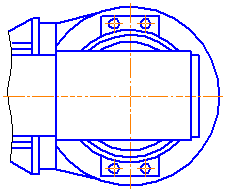
Example of area cleaning: a) selecting an object (highlighted with color), b) the operation result
Specifics of execution of the command to clear a region
•Performing the command deletes (trims) objects located in the In Current View on current and active layers.
•Complex objects (e. g. an insert of a fragment or image from a view of another drawing, a bitmap object, a table, a text, an equidistant line, a multiline) are deleted only if their bounding rectangles fully fit into the region to clear.
•Dimensions and detailing objects (leader lines, datum designations, geometric tolerance designations etc.) are deleted if they fully fit in the region to clear.
•Auxiliary lines intersecting the cleaning area are removed.
