|
Editing a copy of a face |
Scroll |
You can edit the copy of the selected face rather than the face itself. Using a copy, you can keep the source face and its adjacent faces intact.
To create and edit a copy of the selected face, run the Grid Parameters command  and enable the Work with copy option.
The new copy is a separate face transformed into a spline surface. After its creation, the selected face reverts back to the initial state. All further actions in the Spline form mode are applied to the copy of the face; shape and position of the source face remain unchanged.
|
|
a) |
b) |
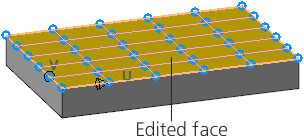
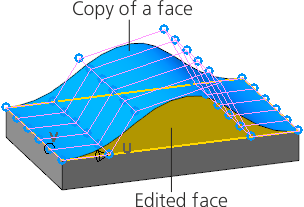
Plotting a spline form on an equidistant surface
a) edited face, b) equidistant surface and edited face
At first, the copy of a face coincides with the source face, that is, the distance between the face and its copy is equal to zero.
You can edit the copy of a face in the same way as you would edit a face.
|
If the face has been edited prior to creating a copy, then the copy will take the current shape and position of the edited face while the face itself restores its initial shape and position. |

You can choose not to create a copy of the face. To do that, please disable the Work with Copy option. The copy of the face will disappear, and the shape will be again converted into a spline surface. All the actions performed in the Spline form mode will be applied to the edited face. The face will acquire the shape and the position of the copy as of the current moment of editing.
|
After you edit the copy of a face, its borders may not match with the borders of the source face and may be located in such a way that it would be impossible to connect adjacent faces of the part. In this case, when you return to editing the face, its shape and position will be different from the current shape and position of the copy. The face will remain in its original state and the phantom of the grid will keep the current state. |
