|
Object Info |
Scroll |
To obtain information about objects when working with models, use the Object Info  command. This information contains reference information about the model or the specified model object: primitive (edge, face, vertex), operations (extruded element, rigidity edge, hole, chamfer, etc.), point, curve, surface, dimension, designation, component, etc.

Step-by-step instructions
To quickly get the information about the object, mouse over it in the graphic range of the model. The object symbol and basic information about the object will appear next to the cursor.
|
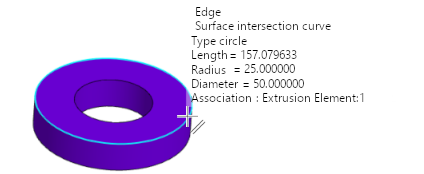
Quick preview of the edge information
Click on the selected object with the left mouse button. On the screen, there will appear the Information window.
By default, brief information about the object is displayed, i.e. only basic information. If necessary, you can also obtain additional information on object:. To do this, disable the Brief option on the Parameters toolbar and re-select the object.
You can select the object or objects for getting information about even before calling the command.
Selecting objects in the Design Tree
Selecting objects in the model graphic area
Some objects can be specified only in the Tree, for example, assemblies, parts, elements, operations, broken lines, others objects can be specified only in the graphic range, for example, edges, faces, vertices, contour segments in the sketch, broken line segments, while certain objects may be defined both in the Tree, and in the graphic range, for example, origins, auxiliary and structural planes, points, splines, threads.
Names of all specified objects are displayed in the Objects field of the Parameters toolbar. When you select a name, the corresponding object is highlighted in color in the graphic area of the model.
If objects were selected in the Design Tree or in the graphic area before invoking the Object Info command, the Information window appears on the screen immediately after invoking the command and contains details about these objects.
To view information about another object point to such object. After clicking on an object, information about it will be added to the Information window.
On the Parameter Toolbar you can also set the accuracy of the calculation results display, as well as length and angle units. Details...
Changes to these parameters are reflected in the Information window.
To complete the command, click Finish  on the Parameters panel or close the Information window.
