|
2D Linear Pattern |
Scroll |
To copy selected objects with placement of copies in the nodes of a parallelogram grid with the specified parameters, use the 2D Linear Pattern  command.

Step-by-step instructions
1.Select the objects to copy. To do this, specify the required objects in the Object selection Select the required objects and click Create Object  .
.
In the Parameter Toolbar, the copying controls will appear. Names of the selected objects are displayed in the Objects field.
|
If the objects are specified before the 2D Linear Pattern command is invoked, then the subprocess of selecting objects is not launched. The system proceeds immediately to the copying command execution. If you need to select other objects for copying, click Objects link and specify the new objects in the subprocess of selecting objects. |

2.Set the base point for copying.
The graphic region will display a phantom of the copies to create. The anchor points of the copies coincide with the grid nodes.
|
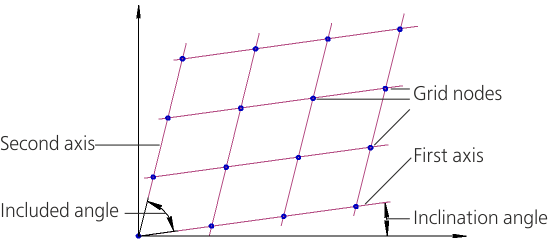
3.Parallelogram grid formation schema
3.Set the grid parameters for each direction using controls in the Direction 1 and Direction 2 groups:
•the treatment of distance between copies in the first and the second direction of the grid, by clicking the appropriate buttons in the Distance between groups:
 By adjacent copies
 Last copies
•the distance between copies in the first and the second direction of the grid in the Value fields;
•the number of copies in the first and the second direction of the grid in the Number of Copies field;
•the slope angle of the first axis of the grid to the X axis of the current coordinate system in the Slope field;
•the angle between the grid axes in the Aperture Angle the field.
4.If necessary, set the rotation angle for the copies in the Rotation Angle field. The rotation center of a copy is its base point.
5.If necessary, set the scaling coefficient for the copies in the Scale field.
|
To set the operation parameters and position the cursor precisely, you can use snaps and geometrical calculator. |

6.Using the options Retain Instances Inside Grid and Retain Instances Inside Grid, specify whether it is necessary to leave copies in the corners and inside the grid. The options are available if the number of copies in each direction is greater than or equal to three.
7.Set the insertion point for the grid.
8.Click Create Object . The copies will be created.
After the copies are created, the selected objects stay selected. You can create a desired number of copies of these objects or select other objects and create their copies.
9.To complete operation of the command, click Finish  .
.
|
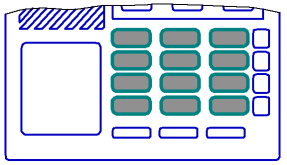
Example of copying by grid
