|
Copy by circle |
Scroll |
To copy selected objects and place copies by a circle with a defined center, use the Copy by circle  command.

Step-by-step instructions
1.Select the objects to copy. To do this, specify the required objects in the Object selection Select the required objects and click Create Object  .
.
In the Parameter Toolbar, the copying controls will appear. Names of the selected objects are displayed in the Objects field.
|
If the objects are specified before the Copy by circle command is invoked, then the subprocess of selecting objects is not launched. The system proceeds immediately to the copying command execution. If you need to select other objects for copying, click Objects link and specify the new objects in the subprocess of selecting objects. |

2.Set the center for copying by circumference.
The graphic region will display a phantom of the copies to create.
3.Select the method of placement for copies by circle, by clicking the appropriate button in the Placement of Copies group:
 With Specified Step
 Along Entire Circle
4.If you chose to place copies with the specified step, enter this step in the Value field. The step value is treated by the system as the angle between adjacent copies.
|
|
a) |
b) |
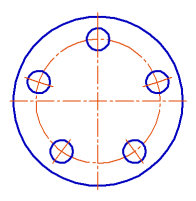
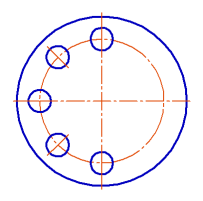
Copying mode: a) along the whole circle, b) with 45° angle step
|
To set the step and position the cursor precisely, you can use snaps and geometrical calculator. |

5.Set the total number of copies in the field with the same name. As the object being copied is included in the total number of copies, the number of created copies will be less by one than the entered value.
6.Depending on the selected placement option for the copies, the copying operation can be completed using the following methods:
•if the copies are placed with the specified step, click on the appropriate side from the object being copied where the copies should be placed;
•If the copies are placed along the entire circumference, click Create Object .
The copies will be created.
7.After the copies are created, the selected objects stay selected. You can create a desired number of copies of these objects or select other objects and create their copies.
8.To complete operation of the command, click Finish  .
.
