|
Flat Pattern |
Scroll |
To display a sheet part(s) in the unbent state, use the Flat Pattern command . The command is available if the model includes at least one sheet element.

Configure the flat pattern parameters for a sheet part — select a fixed face or plane; if required, specify bends that will remain bent in the flat pattern. You can also enable building of bend lines on faces being unbent. More details about setting flat pattern parameters...
After the flat pattern parameters are configured, the sheet part will be displayed according to the specified parameters. The model graphic area will display the flat pattern mode icon  , and the corresponding icon will appear under the root object in the Design Tree.
The process of configuring the flat pattern parameters does not start if these parameters have already been configured. The system immediately switches to the sheet part flat pattern display mode.
The states of bends specified while editing the sheet part are ignored when switching to the flat pattern mode.
You can do the following in the flat pattern mode:
•view the model and measure its geometric and mass-inertia properties,
•delete flat pattern parameters.
For convenience in viewing the flattened sheet part, you can use the By Flat Pattern orientation.
In addition, in the flat pattern mode you can manually label dimensions and designations to the model objects. Detailing elements created in the flat pattern mode are displayed in the Design Tree as subordinate to the flat pattern.
Dimensions and designations created in the flat pattern mode are transferred to the flat pattern drawing.
You cannot edit a model in the flat pattern mode.
To exit the flat pattern mode, do any of the following action:
•click the mode icon in the graphic area,
•run the Expand command again,
•run any building or editing command.
After an exiting the flat pattern mode, the sheet part returns to its state at the time of enabling the mode.
Outside the flat pattern mode, the graphic area does not display dimensions and designations which were created in the flat pattern mode, as well as bend lines (if their construction was enabled when setting flat pattern parameters). The flat pattern icon in the Design Tree is grey, its branch cannot be expanded.
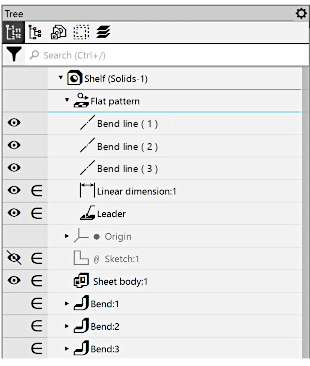
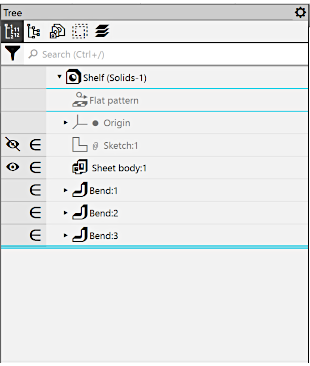
Example of displaying the flat pattern icon in the Design Tree:
a) in flat pattern mode, b) outside flat pattern mode
See Also
