|
Common Name |
Scroll |
According to the standard, when recording items (as well as materials) in the BOM, if these items/materials differ in dimensions and other properties but are applied by the same document, it is acceptable to present the common part of the name of these items/materials with the designation of the document on each sheet of the BOM once in the form of a common name. Below the common name, list the items/materials, indicating only their parameters and dimensions, see figure.
|
|
a) |
b) |
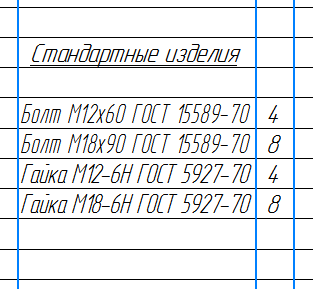
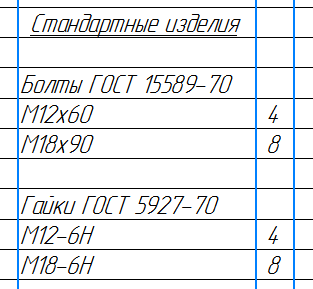
Standard items applied by the same document:
a) without common name, b) with common name
If the KOMPAS-3D BOM contains entries about items/materials applied by the same document, these entries can be automatically formatted using a common name. The common name will be added before the first entry and also at the beginning of the next page if the list of items/materials under the common name continues onto it.
By default, the common name contains the name of the items (materials) and the designation of the document by which they are applied. If required, the user can include other elements in the common name, thus excluding these elements from the names of group objects.
If a common name has been created for certain items/materials, then when adding another item/material that is applied by the same document to the BOM, this item/material is automatically included in the corresponding group, i. e., its name is displayed in a shortened form.
Adding common names is available in the sections Stock Products and Materials, as the texts of items in them are composed of fields. Thanks to this, working with a common name becomes possible: fields containing names of items/materials and the designation of the document form the common name and are displayed in its cell, while in the cells of items they cease to be displayed.
If after editing any item the content of at least one field in the item's name differs from the content of the corresponding field in the common name, this item is automatically removed from the group with the common name.
|
The text part of the items created by a templatecan, in addition to (or instead of) the contents of fields, include arbitrary text. This text is displayed in the BOM table only if the item does not fall into the group with the common name. If the item belongs to a group with the common name, it is displayed without arbitrary text, i. e., it precisely represents the set of data from the template fields. |

Adding a common name is not available in the following cases: if the text part of the item is not composed of fields, if there is no field containingthe document name (for example, the GOST abbreviation) or its number/year of introduction, if the item belongs to a section other than Stock Products or Materials.
Creating a common name
|
Creation of a common name when working with a BOM document (*.spw) is always available, but when working with BOM items in the subordinate mode it is only available in case of BOM placement on the drawing sheet. |
To create a common name, select in the BOM any item/material from the group of items/materials applied by the same document and run the Add a common name command  .
.

After running the command, a common name for the group of items/materials is formed in the BOM, and the system switches to the common name editing mode. In this mode, a group of BOM items associated with a common name is highlighted in the BOM table with a green marquee, and controls for configuring the common name and the group items appear on the Parameter Panel. These controls and editing features are described below.
While the common name is in editing mode, the names of the items/materials to which it refers are displayed in full.
If necessary, edit the display of the common name and of group objects, then click Create Object button  on the Parameter Panel. The green marquee around the group will disappear and the names of the group will be displayed in a shortened form: the common part will be excluded from them.
The names of items/materials in the common name take the plural form (Bolt — Bolts, etc.). If necessary, the user can append the existing set of names. Details...
|
Items applied by the same document may belong to different subsections. In this case, running the Add a common name command for one of these items creates common names in all subsections of the current section where this item is present. |
Managing display of the common name and items
In the common name editing mode, the Parameter Panel displays the Common Name and Product List fields, the Show Name option, and the Setting Field Visibility section.
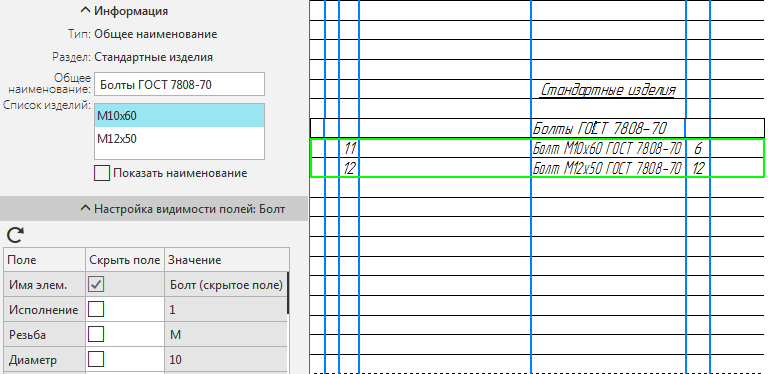
Setting the common name
In the Common Name field, the common name is displayed in its current form. You can include new fields in the common name in the table of the Setting Field Visibility section: for this, you need to enable the Hide Field option in the row of the desired field. To exclude a field, disable the option. Please note that it is impossible to exclude the name of items/materials and the document designation from the common name.
If necessary, in the Common Name field you can manually edit the common name text arbitrarily. This can also be done directly in the BOM table cell. If you want to cancel editing and restore the original common name, click Transfer text to the BOM object button  in the Setting Field Visibility section.
The Product List is for reference. In it, you can view the names that will be assigned to the items of the group after completion of editing the common name.
The Show Name option displays the name in item rows, regardless of the corresponding field being hidden. This allows to format records of items parameters or dimensions of which are denoted by only one number or letter, as per the standard.
In addition to editing the common name text, it is possible to manage the number of empty rows displayed after the group of items/materials applied by the same document.
This setting is made outside the common name editing mode: you need to select the common name row in the BOM table and enter the required number in the Blank lines field that appears on the Parameter Panel. By default, one empty row is added.
Automatic addition of empty rows before the common name is not provided. If necessary, create them manually by adding auxiliary BOM items using the Items — Add Auxiliary Item command.
Deleting a common name
To delete a common name, select it in the BOM table and run the Edit — Delete Item command  or press the <Delete> key. In the dialog to confirm the item deletion, click Yes.
As a result, the row with the common name will be deleted, and the items to which it referred will revert to their previous appearance, that is, they will be displayed in full. Simultaneously, empty rows after the group of items under a common name are also deleted.
Plural form for names in the common name
Plural forms for the names of items/materials used in a common name are stored in a json file.
The file with the default set of names is named plural_names.json and is located in a folder the path to which is determined by the SYS system variable. By default, this is the \Sys subfolder of the KOMPAS-3D main system folder.
If you need to supplement or correct an existing set (for example, in the case of applying foreign standards), use the plural_names_user.json file located at %PROGRAMDATA%\ASCON\KOMPAS-3D\SP. It can be opened and edited with any text editor, for example, Windows Notepad. The file plural_names_user.json already contains a template in which you only need to replace the placeholder names with real ones. It is also possible to use the plural_names.json file as a sample.
After editing the plural_names_user.json file, restart KOMPAS-3D for the changes to take effect.
IS:
Special characters for fractions ($d ; $) can be entered in the Common Name field manually — for example, if you need to switch from entering a fraction with a slash to entering it with a horizontal bar. But you need to enter it specifically in the Common Name field — if you enter it in the SP cell, the fraction will not appear, and these characters will remain in the text. We decided with Sveta that perhaps this should be added to the FAQ section instead of here.
