|
Wavy line |
Scroll |
The wavy line represents itself as a sinusoid having an integer number of half-waves. Initial and final points of the wavy line lie on the middle line of a sinusoid.
To build a wavy line, it is necessary to set its initial and final points, wavelength and amplitude (see fig. a).
|
|
a) |
b) |
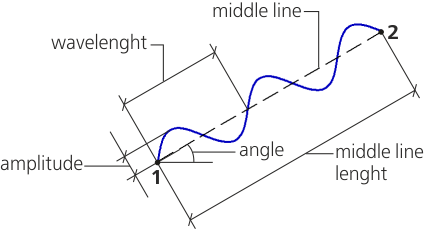
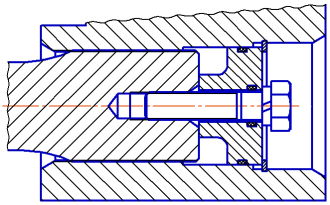
Wavy line and example of its use
To build a wavy line of break, use the Wavy Line command  .
.

Step-by-step instructions
1.Set the points through which the wavy line will run, by one of the ways.
•Specify the starting and end points of the wavy line.
•Specify the starting point of the wavy line, set the length and slope angle of segment of the middle line (an angle between the segment of the middle line and the abscissa axis of the current coordinate system). The length and slope angle of the segment are set in the respective fields on the Parameter Toolbar.
A phantom of the created line appears in the graphics area.
|
To precisely set the points of a wavy line, you can use snaps and geometrical calculator. |

2.Specify the Parameters of wavy line using elements of the Additional Parameters section.
3.If necessary, select the style of the line being created. For that, the Style dropdown list in the Additional parameterssector is used.
|
The list of line styles which are available for selection, as well as their sequence is determined by the setting of the filter of lines made in the Break Lines – Line filter section in the dialog for setting up the current document. |
4.Set the direction of drawing of the wavy line. For that, click at one or the other side of the middle line.
After fixing the direction, creation of a wavy line automatically ends.
5.To complete the operation of the command, click Finish  .
.
|
The wavy line amplitude can be set in the graphic area. To do this, after specifying the points the line will go through, press and hold the <Ctrl> key. Move the cursor over the document field — the amplitude and/or the direction of drawing will change. The amplitude value at the current cursor position is displayed in the Value field of the Parameters panel. Having reached the desired parameters, release the <Ctrl> key. |

