|
Descriptions of BOMs dialog |
Scroll |
This dialog appears on the screen after you run the Descriptions of BOMs.

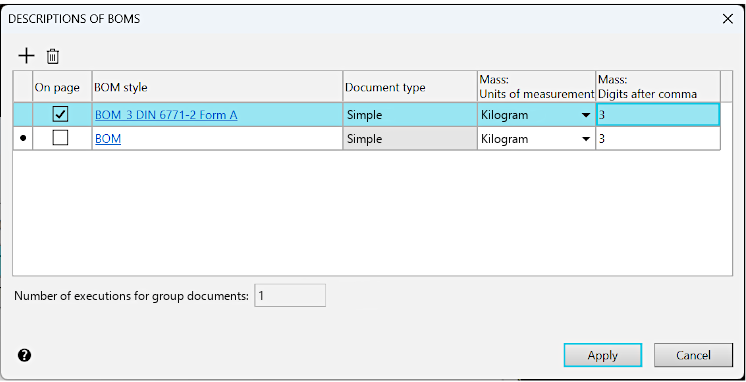
You can view and edit descriptions of BOMs, existing in the current document, add or remove descriptions, and also set the number of versions for group documents.
Description of controls
|
Name |
Description |
|
Add description |
Click this button to add a BOM description to the list. After that, a dialog will appear on the screen in which it's available to select a BOM style. BOM descriptions belonging to the same document should include different styles. |
|
Delete description |
Press this button to delete the selected BOM description from the list. |
|
Table with BOM descriptions |
A table containing a list of BOMs that are listed in the document. The columns of the table are described below. |
|
|
If there is a description in the document with the BOM style that was not found (i.e., a style, which number is not in the library from, where this style was taken, or a style for which the library itself was not found), then the line of this description is highlighted in pink. You can restore the library/style in it, or choose another style instead of the one not found, or delete the description with the not-found style from the document. |
|
Current |
The mark Only one description can be current. Therefore, upon appointment of any current descriptions this feature is removed from the description that was current earlier. The BOM style that is included in the current BOM description is considered current. This style is used when displaying BOM items on the BOM panel, the BOM table in subordinate mode, and during adding/editing the BOM item. |
|
On page |
The column is present only in the dialog for control of BOM descriptions in the drawing. Activating the option in this column allows to enable the display on the drawing sheet the BOM data contained therein. This data will be presented in a table corresponding to the BOM style from the selected description. The display on the sheet can be enabled for one or several descriptions, or it can be disabled for any. |
|
BOM style |
A column containing the names included in the BOM style descriptions. To change the style in a description, click on the style name in the corresponding cell of the column. After that, the screen will display the the dialog, in which it's available to select detailing style library (*.lyt) and style from it. |
|
Document type |
The column displaying reference information about the document type: simple or grouped (by option A or B). The document type is set in BOM style. |
|
Mass: Units of measurement, Mass: Digits after comma |
Columns that allow you to set the mass units and the accuracy of the display of its value. These parameters are used when displaying mass values in the respective columns of BOM, for example, in the column Mass of the plasma specification or in the additional column Mass. |
|
The field to set the number of versions of the product. •If the dialog is invoked for a model, the number of versions equals the actual number (i.e. the number created in a model of versions or 1, if the model of versions does not have) and is not available for modification. •If the dialog is invoked for a drawing, the number of versions can be changed provided that the list of descriptions contains at least one with the document type Group. |
|
|
|
The number of versions is a product BOM, not a description of the BOM. Therefore, after deleting a description with a group document type from the drawing, the number of versions does not automatically become equal to one (but becomes unavailable for editing). Due to this, the quantities of BOm items for all instances are preserved in the document, if they were specified. They can be viewed and edited on product BOM panel in execution mode. |


 in this column means that the corresponding description is the current one. To make another description current, click in the corresponding cell of this column.
After setting the BOM descriptions, click the Apply button. To exit the dialog without saving changes made, press the Cancel button.
