|
Dialog for selection detailing, style or title block |
Scroll |


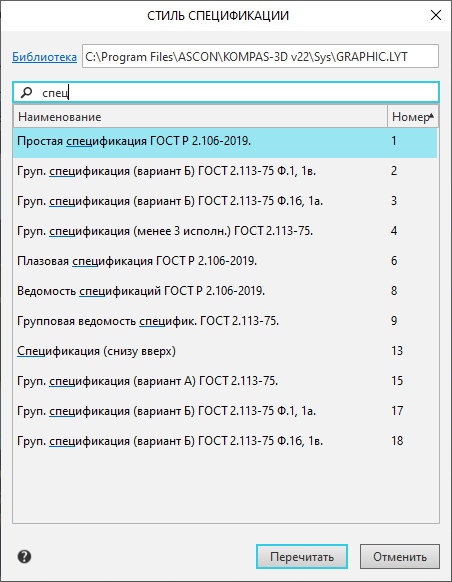
Allows selecting a library file *.lyt, and from it — either a title block for inclusion in detailing, or detailing for a sheet, or style for BOM. In some cases, the *.lyt library is already defined, and then in the dialog, only the selection of detailing/design/style/title block from this library is performed.
Description of Controls
Name |
Description |
||
|
Library |
|
The Library field is not available in the dialog if it was invoked from another dialog after selecting a *.lyt file in it. |
|
|
In the Library field, the full name of the library file *.lyt is displayed, containing designs, styles, and captions. To select another library file, click the name of the field and then specify the required file in the dialog that appears *.lyt. When selecting a format for a drawing sheet, the Library field can be cleared — to do this, click the "x" icon in its right-hand part. As a result, the drawing will not have frames and the title block. The existence of a BOM without a style is impossible, so when configuring it, data cannot be removed from the Library field. You can copy the contents of the Library field by invoking the Copy command from its context menu. If the Library field contains an error attribute — an exclamation sign inside a red circle — hover over it with the mouse pointer to find out the cause of the error. |
|
|
List of library objects and search box |
If the Library field specifies the correct library file *.lyt, the dialog displays a list of objects in this library — designs, styles, or title blocks. The list is represented as a table consisting of two columns: The name and the number. The object currently in use is selected in the list. For example, in the formatting selection dialog box for the drawing sheet, the formatting that the sheet had at the moment the dialog box was opened will be highlighted. |
|
|
|
Above the list is the search field. Enter the sought characters into it to start the search. After this, only those objects the names or numbers of which contain the specified characters will remain in the list. To re-display the complete list of objects, remove all from the search field. Objects in the list can be sorted by names or by numbers. To change the sorting, click the header of the required column. A triangle is displayed in the header of the column by which sorting is performed. Its position indicates the direction of sorting — ascending or descending. |
|
|
Reread |
Allows you to reload the selected detailing/style/title block from the library. If the style/detailing in the library is modified, these modifications will be reflected in the document. The Reread button is displayed in the dialog before a different format/style/title block is specified in the list, for example, if the dialog is called for selecting a different drawing sheet format, but the new format has not yet been specified. |
|
Apply |
Allows you to confirm the choice of the selected design/style/title block in the list. The Apply button will appear in the dialog box after a different style/template/title block is selected instead of the current one. Besides, the Apply button is displayed in the dialog when the selection of detailing/style/title block is made after changing the *.lyt library. |
||

After completing the selection of design/style/title block, click the Reread button or Apply. To exit the dialog without saving changes made, press the Cancel button.
See Also
Storage of information on the detailing used in the document
